Controller Input Lag: How to Test It and Cut the Latency
Controller input lag is the full delay from your thumb to the screen, and no browser can measure all of it, because it cannot time your physical press or the display. What a browser can measure is the controller's share: the polling rate and the connection. Measure those wired versus wireless, then close the gap to cut the lag you can control.
A browser cannot measure true controller input lag, but it can measure the two things that cause it. Test your polling rate and connection, then reduce latency.
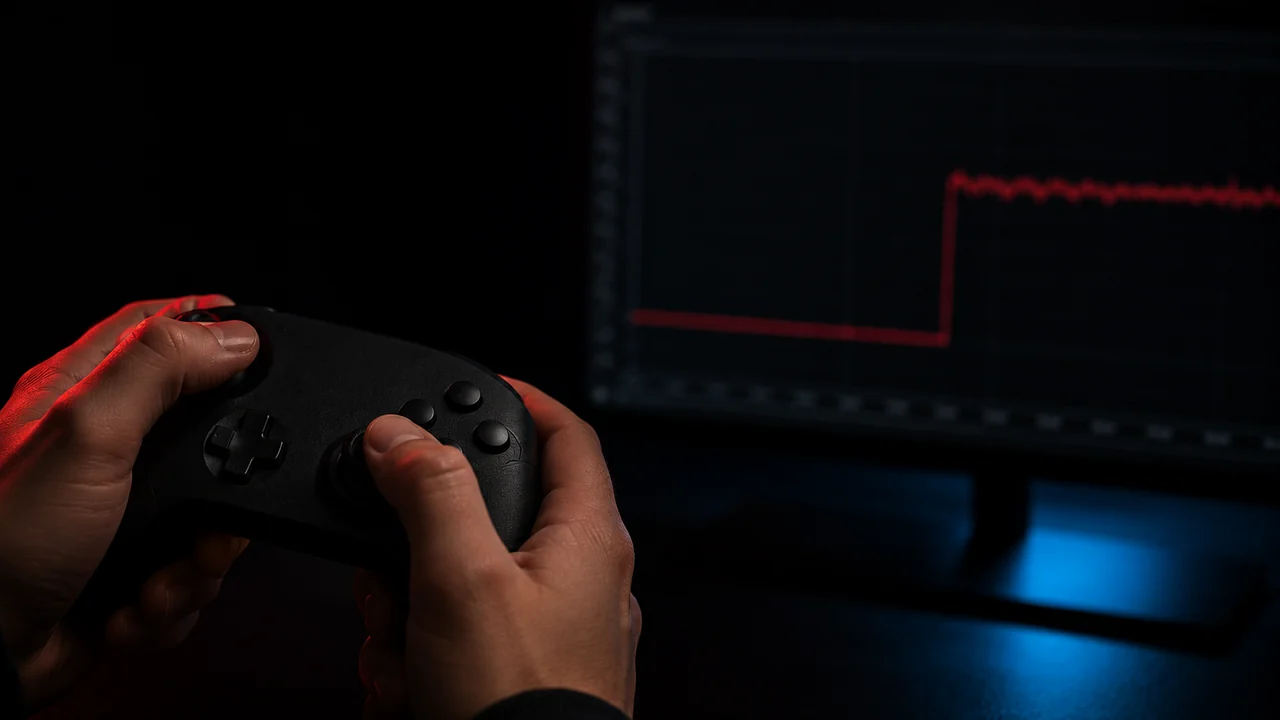
Controller input lag is the delay between moving your thumb and seeing the result on screen. You cannot measure that full delay in a browser, but you can measure the two things that cause most of it, and fixing those is what actually makes a pad feel responsive again.
The honest starting point: no web page can time your physical button press or the moment the pixels change on your display, so no browser tool reports true end-to-end controller latency. What a browser can do is measure the controller’s update rate and how steady the connection is, which together drive most of the lag you feel. This guide shows what is measurable, what is not, and how to cut the latency you can control.
The W3C Gamepad specification exposes a timestamp on every controller update[1], which lets a page measure how often the pad reports and how regular that reporting is. It does not expose the physical press time or the display’s scanout, so end-to-end lag stays outside the browser. That is why JoyCheck measures the polling rate honestly as a floor and never prints an input-lag figure it cannot observe.
Source: W3C Gamepad specification
Updated on 2026-07-17 by Taimoor Bamazai, founder of Elites Algorithm (Dublin, Ireland and Pakistan) and the builder behind JoyCheck.
What a browser can and cannot measure
- Input lag is the full thumb-to-screen delay; a browser cannot measure all of it, only its main causes.
- The two measurable causes are the controller’s polling rate and the steadiness of its connection.
- A higher polling rate trims at most one polling interval of wait: 8 ms at 125 Hz, 1 ms at 1000 Hz.
- Bluetooth adds a few milliseconds over a cable and is less steady; wired USB is the low-latency floor.
- The reliable fix is a comparison you run yourself: measure the pad wired, then wireless, and close the gap.
What is controller input lag?
Controller input lag is the total time from a physical input to the on-screen response, and it is a chain, not a single number. Your press has to be read by the controller, reported over the connection, processed by the game, and finally drawn by your display. Each link adds a few milliseconds, and the felt lag is the sum.
Two of those links belong to the controller itself: how often it reports its state (the polling rate) and how it gets that state to the machine (the connection). Those are the two a browser can measure. The game’s processing and the display’s own latency are real, but they are set by the software and the monitor, not the pad, so a controller tool leaves them out.
Can you test controller input lag in a browser?
You cannot test the true end-to-end figure in a browser, and any tool that claims a precise button-to-screen number without hardware is guessing. The browser never sees the instant your thumb moves or the instant the pixels change, so the two endpoints of real input lag are invisible to a web page.
What you can test is the controller’s contribution. The controller polling rate test times the gaps between state updates and reports the rate in Hz, and running it wired against Bluetooth shows exactly what your connection costs. That comparison is the practical version of a latency test: it finds a slow or unsteady link, which is the fault most people are actually chasing when a pad feels laggy.
There is also a reaction-style check, where you press on a visual cue and the tool times the round trip. That measures your reaction plus the whole system, not the controller alone, so treat it as a rough feel test rather than a hardware measurement.
How to test your controller latency
Test latency by measuring what you can and comparing two connections on the same pad. The test reads the pad’s high-resolution timestamp, which updates each time the state changes, and times the intervals between those updates[2]. The steps take about a minute and need no install.
- Measure wired. Plug the controller in with a data-capable cable, open the polling rate test, and run it while rotating a stick. Note the Hz and the jitter.
- Measure wireless. Re-pair over Bluetooth or a 2.4 GHz dongle and run the same test. Note the new Hz and jitter.
- Read the gap. A lower Hz or higher jitter on the wireless run is the latency your connection adds. A big gap means the link, not the pad, is your lag.
- Confirm the feel. Play a fast section on each connection. The one that measured steadier should feel more responsive, which confirms the numbers.
The browser gamepad tester covers the rest of the pad, so this latency check slots into the same no-install pass as buttons, sticks, and drift.
What causes controller input lag?
Most controller input lag comes from the connection and the polling rate, in that order. A wireless link is the usual culprit: Bluetooth schedules its transmissions in fixed windows, so it adds a few milliseconds over a cable and varies more from moment to moment. Interference, a weak battery, or a crowded 2.4 GHz band all make that variation worse.
Polling rate is the second cause, and on a wired pad it is set by the USB HID interrupt endpoint, which declares its polling interval to the host[3]. A pad that reports every 8 milliseconds (125 Hz) can make the game wait up to a full 8 milliseconds for the next update; one that reports every millisecond (1000 Hz) waits at most one. That is the controller’s own share of the lag, and it is capped at a single polling interval.
Everything else sits outside the controller: the game’s input handling, background load on your machine, and the display’s response time. A Bluetooth link that keeps dropping is worth fixing first, because an unstable connection adds far more felt lag than a modest polling-rate difference ever will.
How to reduce controller input lag
Reduce input lag by attacking the connection first and the polling rate second, since that is the order of impact.
- Go wired. A data-capable USB cable removes the wireless scheduling and the radio variables in one step. It is the single biggest, cheapest latency win.
- Prefer a 2.4 GHz dongle over Bluetooth. If you need wireless, a dedicated dongle usually beats Bluetooth for both latency and steadiness.
- Raise the polling rate if your pad supports it. Some controllers ship a high-rate mode or a companion app switch. Confirm the change with a before-and-after polling rate test rather than trusting the label.
- Clear the RF and the battery. Charge the pad, move closer to the receiver, and reduce competing 2.4 GHz devices to steady a wireless link.
- Handle the rest of the chain. Turn on your display’s game mode and close heavy background apps; those cut the parts of the lag the controller cannot.
Why does my PS5 controller feel laggy?
A PS5 DualSense that feels laggy is usually reporting the connection, not a hardware fault. Over Bluetooth the DualSense adds a few milliseconds versus its USB-C cable, and a low battery or a busy wireless band makes the link less steady, which reads as inconsistent lag rather than a constant delay.
The test is quick: plug in the supplied USB-C cable, which carries data as well as charge, and run the polling rate test wired and then over Bluetooth. If the wired run is steadier, the wireless link was the cause and the cable is your fix. If both runs look the same and the pad still lags, the delay is coming from the game or the display, not the controller.
What a browser latency check can and cannot do
A browser latency check can measure the controller’s update rate, expose a slow or unsteady connection, and put a real number on the wired-versus-wireless difference on your own machine. What it cannot do is measure true button-to-screen lag, time your physical press, or read your display’s latency, because those need a high-speed camera or a hardware latency tester.
Used inside those limits, it answers the question players actually have, which is whether this pad on this connection is the thing making the game feel slow. For the wider checkup, the controller polling rate test reads the update rate, the stick drift test checks the analog sticks, and the Bluetooth disconnect guide covers the wireless link that most often adds the lag.
Polling and latency references used here
-
W3C Gamepad specification. The W3C standard defining the gamepad object and its
timestampattribute, which records when the pad’s state last changed and is the primitive a browser uses to measure update rate and jitter. -
MDN Web Docs: Gamepad.timestamp. Mozilla’s developer reference for the timestamp property, a high-resolution value that increments on each state change, which the polling rate test measures intervals from.
-
USB-IF Human Interface Device specifications. The USB HID specifications, under which an interrupt endpoint declares its polling interval, the mechanism that sets a wired controller’s report rate and therefore its share of the input lag.
Can you test controller input lag in a browser?
Not the true end-to-end figure. Real input lag is the time from your thumb moving to the pixels changing on screen, and a web page cannot timestamp the physical press or the display scanout. What a browser can measure is the two biggest causes of that lag: the controller's update rate in Hz and how steady the connection is. Fix those and the felt lag drops.
How do I test my controller's latency?
Measure the update rate with a polling rate test, once wired and once over Bluetooth, and compare the two numbers. The gap is the latency your connection adds. For the true button-to-screen figure you need a high-speed camera or a hardware latency tester, but the polling comparison is enough to find and fix a slow link.
Does Bluetooth add input lag?
Yes. A wireless link schedules transmissions in fixed windows, so it typically adds a few milliseconds over a wired connection and is more variable. On the same pad, a wired USB connection is the lowest-latency option, which is why competitive players use a cable.
How much input lag does polling rate add?
At most one polling interval. A 125 Hz pad updates every 8 ms, so it can add up to 8 ms of wait; a 1000 Hz pad updates every 1 ms, so at most 1 ms. Moving from 125 Hz to 1000 Hz saves up to about 7 ms of worst-case wait, and past 250 Hz the gains shrink quickly.
Why does my PS5 DualSense feel laggy?
Usually the connection, not the pad. A DualSense over Bluetooth adds a few milliseconds versus its USB-C cable, and a weak battery or RF interference makes the link less steady. Plug in with a data-capable USB-C cable and re-test; if the felt lag drops, the wireless link was the cause.
Is wired always lower latency than wireless?
For a direct comparison on the same controller, yes. A USB cable removes the wireless scheduling and the radio variables entirely. A good 2.4 GHz dongle gets close to wired and usually beats Bluetooth, but a cable is the reliable floor.
Does polling rate affect input lag?
Yes, but it is only one part. A higher polling rate shortens the wait between controller updates, so it trims the controller's share of the lag. The rest comes from the connection, the game's own processing, and your display, so polling rate alone does not decide how responsive a setup feels.
Measure the polling rate behind your latency
No install, no account. Your inputs never leave your device.