HID-Compliant Game Controller: What It Means and How to Fix
An HID-compliant game controller, shown in Windows as Generic HID, is the fallback device class the system assigns when it cannot match your gamepad's vendor and product ID. Buttons still fire numerically, but games cannot auto-detect the layout. Fix it by installing the correct driver, remapping in-game, or switching the pad into XInput or Xbox mode.
An HID-compliant game controller (Generic HID in Windows) works, but games cannot auto-map it. Identify the pad and install the right driver in three steps.
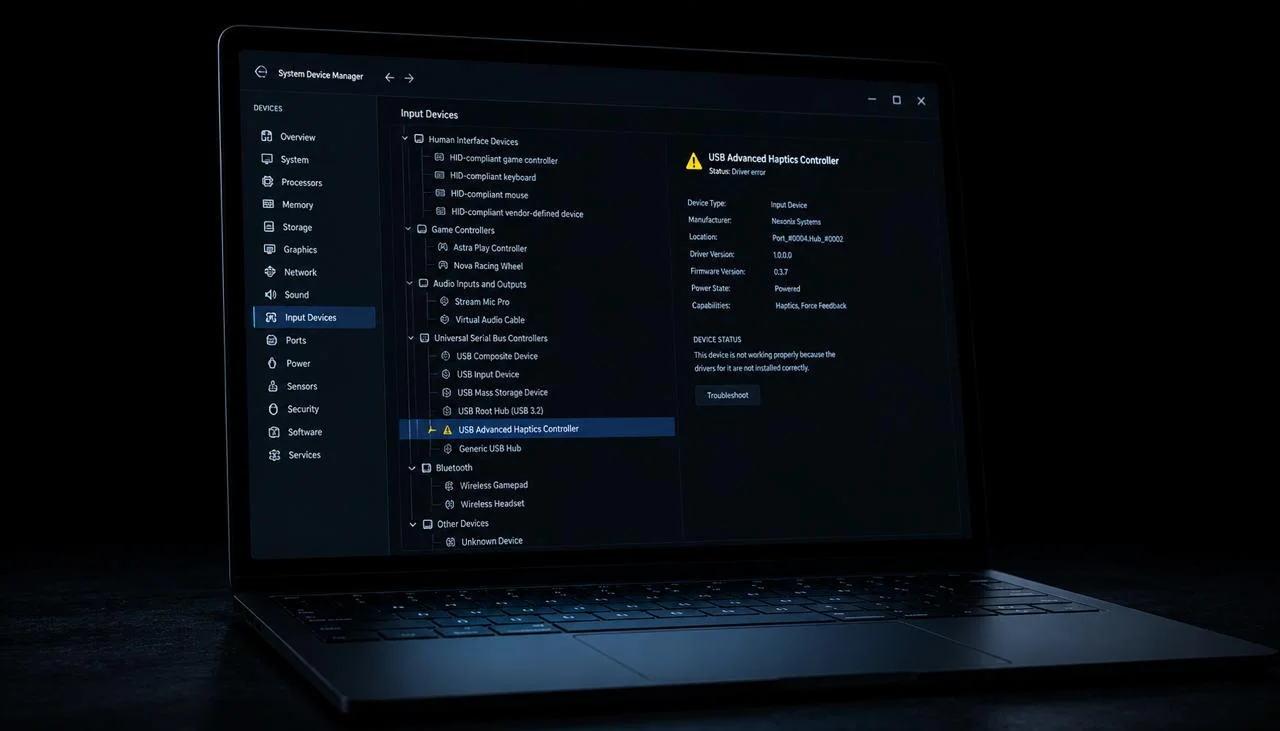
An HID-compliant game controller, shown in Windows Device Manager as Generic HID, is the fallback Human Interface Device class the OS assigns when it doesn’t recognize your gamepad’s specific vendor and product ID. The buttons still report numerically (button 0, 1, 2…) but games can’t auto-detect the layout. Fix it by remapping in-game, wrapping with XInput on Windows, or, if the controller has a mode switch, putting it into XInput/Switch/Xbox mode instead of D-Input.
Key fact: “Generic HID” is a USB device class (0x03) descriptor: the system sees a Joystick/Gamepad usage page but has no vendor-specific Xinput driver, so most modern AAA Xinput-only games will not detect the controller without a translation shim like Steam Input, DS4Windows, or x360ce.
What generic HID actually means
- Generic HID is a fallback USB class (0x03), not a broken controller; inputs still fire numerically.
- A 30-second browser test confirms whether the controller is seen by name or as a raw VID:PID device.
- A mode-switch combo (Start + X on 8BitDo) often puts a D-Input pad into Xbox mode and fixes recognition.
- On Windows, wrap the HID device with Steam Input or x360ce when a game demands XInput.
- For serious play, a natively recognised XInput controller ends the per-game remapping for $25 to $70.
USB HID class 0x03 (Human Interface Device) is the USB-IF fallback specification Windows assigns when no manufacturer driver matches a connected controller. To identify the actual device, read its USB Vendor ID (VID) and Product ID (PID) in Device Manager → Properties → Details → Hardware IDs.
Source: USB-IF HID class specification
Identify how your controller is being seen
- Connect your gamepad, USB or Bluetooth.
- Open the gamepad tester in any browser.
- Press any button. The controller appears in the device row.
- Check the id string: if it shows numbers (vendor:product hex) instead of a model name like “Xbox” or “DualSense”, you’re on a generic HID device.
- Press each button and stick, JoyCheck shows the raw input mapping.
What “Generic HID” actually means
USB HID (Human Interface Device) is a standard that describes how input devices report their state, keyboards, mice, gamepads, joysticks, tablets, even some medical devices use it [1]. Every HID device has a vendor ID (assigned by USB-IF) and a product ID (chosen by the vendor). Operating systems and browsers match this pair against a database of known devices to apply the right driver and layout.
When the OS doesn’t recognize the pair, it falls back to the generic HID class. The device still works, buttons fire, axes report, but everything is in raw numbered form: “button 0”, “axis 1”, instead of “A button” or “left stick X”.
Why this matters: Games rely on the device name to apply the right button layout. A game that hardcodes “Xbox A button” can’t map a button on a generic HID device unless you remap it manually.
Four common reasons a controller reports as generic HID:
-
Off-brand / no-name controller. Cheap controllers ($10-20 from Amazon or AliExpress) often use a generic chipset that the OS doesn’t recognize. Inputs work; layout doesn’t.
-
Controller in D-Input mode. Many controllers (8BitDo, Hori, GameSir, Nacon) have multiple modes, Switch, Xbox, D-Input. D-Input mode reports as generic HID. Switching modes (Start + X for 8BitDo, etc.) puts it in Xbox or Switch mode for proper layout recognition.
-
Controller firmware too old. Pre-2020 firmware on some 3rd-party controllers used vendor IDs that newer OSes don’t recognize. Firmware update fixes this.
-
Custom or arcade controllers. Fight sticks, dance pads, racing wheels, instrument controllers like Guitar Hero guitars, and homemade controllers often run on generic HID, the controller works, but it isn’t an “Xbox” or “PlayStation” device.
What to do about Generic HID
Work four fixes in cost order and stop at the first one that makes your game recognise the controller. Start by identifying the device, then remap inputs in-game, then wrap it with XInput on Windows, and only buy a natively supported controller if the first three fail. Each tier is free except the last.
“Most people who land on a Generic HID label assume the controller is dead and toss it. In my hardware-diagnostic work it almost never is. The inputs are firing cleanly; the operating system simply has no name for the device. Nine times out of ten a mode-switch combo or a XInput wrapper clears it, and you have spent nothing. I treat replacing the pad as the last tier, not the first.”
Taimoor Bamazai, founder, Elites Algorithm
Four options, ordered by cost. Stop at the first one that works.
| Tier | Cost | Fix | Time |
|---|---|---|---|
| 01 | Free | Identify the HID device | 60 seconds |
| 02 | Free | Remap inputs in-game | 5 minutes |
| 03 | Free | Wrap with XInput (Windows) | 10 minutes |
| 04 | $25-70 | Buy a supported controller | Last resort |
Tier 01: Identify the HID device. Before fixing anything, confirm what you’ve actually got.
Tier 02: Remap inputs in-game. For games that support custom button mapping.
Tier 03: Wrap with XInput (Windows). If a Windows game won’t let you map buttons, or if it specifically requires XInput (older racing games, Dark Souls 1, many emulators).
Tier 04: Buy a supported controller. After Tier 1-3, if your game still can’t use the controller cleanly, the simplest fix is a controller that’s natively recognized.
How does Generic HID behave on each platform?
Generic HID behaves the same way at the hardware level on every platform, but each operating system exposes it differently. Windows shows it as a nameless game controller you wrap with XInput, macOS recognises it with limited rumble and haptics, Linux routes it through the hid-generic driver, and browsers report it by raw button index.
Windows. Without a vendor-specific driver, generic HID devices appear in Device Manager as “USB HID-compliant game controller”. You can rename them via Control Panel → “Set up USB game controllers” but the actual driver doesn’t change. Use x360ce or Steam Input to wrap them in XInput.
macOS. macOS has a built-in Game Controllers framework that recognizes Xbox, DualSense, and Switch Pro by vendor/product ID [3]. Generic HID devices show up but with limited functionality, no native rumble, no haptics. Use Joystick Mapper or similar for HID-to-keyboard mapping.
Linux. Modern kernels treat generic HID devices via the hid-generic driver. The evdev and SDL2 interfaces expose the inputs to games. Use antimicrox for visual remap to keyboard/mouse.
Browser. The W3C Gamepad API reports the controller in a “standard mapping” or “no mapping” mode [2]. Generic HID devices usually fall into “no mapping”, the browser reports buttons by raw index. JoyCheck displays this as numbered buttons and axes.
Which gamepad patterns are common in HID mode?
A handful of button-and-axis layouts cover most controllers that fall back to generic HID. Counting how many buttons and axes JoyCheck reports tells you roughly what kind of device you are holding, from a generic Xbox-style gamepad to a flight stick, a racing pedal, or a fight-stick arcade panel. The table below maps the common patterns.
| Pattern | Buttons | Axes | Likely device |
|---|---|---|---|
| 0-3 face + 4-5 shoulder + 6-9 directional | 10+ | 2-4 | Generic Xbox-style gamepad |
| 0-5 face + 6-9 special | 10 | 2 | NES/SNES-style arcade pad |
| 0-1 + 4-axis joystick | 2 | 4 | Joystick / flight stick |
| 2 buttons + 1 axis | 2-3 | 1-2 | Old-school racing pedal |
| 16+ buttons + dpad | 16+ | 4-6 | Fight stick / arcade panel |
| Single rotational axis | 0-2 | 1 | Steering wheel without buttons |
What HID gotchas should I avoid?
The common HID surprises are buttons reported in an unexpected order, a D-pad that shows up as a single hat axis, fewer buttons than the controller physically has, an unresponsive mode switch, and retro adapters that report zero inputs. Each has a known cause and a known fix, covered below.
“The buttons fire in the wrong order.” HID devices report buttons by ID, not by physical position. Button 0 might be the south face button on one device and the start button on another. JoyCheck shows the actual numbering, match it to your game’s button settings.
“The D-pad shows up as an axis instead of buttons.” Many generic HID controllers report the D-pad as a “hat switch”, a single axis with 8 discrete positions (N, NE, E, SE, S, SW, W, NW, neutral). Games that expect button-style D-pad input miss it. Tier 3 (x360ce) converts hat to buttons.
“Some buttons don’t appear in JoyCheck at all.” The controller’s HID descriptor lists fewer buttons than the controller has physical inputs. This usually means the controller has a “secondary input” mode that requires a button combo to access. Check the controller’s manual.
“Mode switch button does nothing.” Either the controller doesn’t actually have multiple modes (it’s just labeled that way), or the mode switch requires a specific button combo while connected. 8BitDo controllers use Start + X for Xbox mode, Start + Y for Switch mode, etc., check the brand’s documentation.
“My retro controller (NES, SNES, Mega Drive) shows zero buttons.” Some adapters that bridge old consoles to USB report inputs as raw HID button bits without a proper descriptor. JoyCheck may show “0 buttons, 0 axes” but pressing buttons fires events under the hood. Use a dedicated tool like JoyTester for low-level HID inspection.
When to abandon the HID device
Generic HID is fine for hobby use, retro emulation, and games with remap menus. But if you’re getting into serious play (competitive shooter, racing sim, fighting games), the time spent remapping per-game starts to outweigh the cost savings of a no-name controller.
Signs to upgrade:
-
You spend more than 5 minutes per game configuring inputs.
-
Some games refuse to detect the controller no matter what you do.
-
Latency is noticeably worse than friends’ controllers in the same game.
-
The controller’s input layout breaks in new games (game expects XInput, device only reports HID).
A modern XInput controller eliminates all of this for $30-70. See “Replace with a supported controller” above.
How do I confirm HID detection works?
Confirm HID detection by running a full input pass in JoyCheck after every fix. Press each button in turn and note the ID it reports, move both sticks to check the axes respond, test the D-pad, and verify the controller is in the right mode. If every input registers cleanly, the fix held.
After every fix, run a full HID test in JoyCheck:
-
Open the controller tester in any modern browser.
-
Press each button on the controller in sequence, note which button ID JoyCheck reports for each.
-
Move both sticks (if equipped), check that axes 0/1 and 2/3 respond.
-
Try D-pad, confirm it’s either separate buttons (good) or a single hat axis (use x360ce to convert).
-
Confirm the controller is in the right mode if it supports multiple (Xbox mode for PC gaming, Switch mode for Switch console).
Rumble is the one input-adjacent feature HID mode often drops. The controller vibration test tells you in one click whether your pad exposes rumble to the browser at all.
If every input registers cleanly, you’re ready to map it in-game or wrap it with XInput.
USB and HID specifications cited here
- USB-IF HID class specification. The USB Implementers Forum reference for the Human Interface Device class (0x03), the fallback descriptor an OS assigns when no vendor-specific driver matches a connected controller.
- W3C Gamepad API specification. Defines how browsers expose connected gamepads, including the “standard mapping” and “no mapping” modes that decide whether a controller reports by name or by raw button index.
- Apple Game Controller framework. The macOS framework that recognises Xbox, DualSense, and Switch Pro controllers by vendor and product ID and exposes native rumble and haptics to compatible apps.
What does "Generic HID" mean?
Generic HID is the fallback class for USB Human Interface Devices that the OS doesn't recognize by vendor/product ID. The device works, inputs fire, but games can't auto-apply a button layout without you doing it manually.
Is a Generic HID controller broken?
No. The hardware works fine. The OS just doesn't have a profile for the specific make and model. Inputs are exposed correctly in JoyCheck and any app that reads raw HID.
How do I make my controller stop showing as Generic HID?
Three paths: (1) check for a mode-switch button combo (8BitDo, Hori, GameSir all have these, Start + X usually enables Xbox mode); (2) update controller firmware via the manufacturer's Windows updater; (3) replace with a controller that has native vendor recognition (Xbox Wireless Controller, DualSense, Switch Pro).
Can I use a Generic HID controller in Steam games?
Yes. Steam → Settings → Controller → enable "Generic Gamepad Configuration". Steam Input wraps the HID device and exposes it to every Steam game as a clean XInput controller. Configure the mapping once in Big Picture mode.
Does Generic HID mean my controller has higher latency?
Sometimes, but not always. Latency depends on the HID polling rate (typically 125 Hz, sometimes 250 Hz or 1000 Hz on premium controllers) and the wireless protocol if applicable (Bluetooth Classic vs BLE vs proprietary 2.4 GHz). HID class itself doesn't add latency, only the specific implementation does.
Can I add my controller to the OS's known-device list manually?
On Linux, yes, edit /usr/share/X11/xkb/symbols/inet or use udev rules to assign a name. On Windows and macOS, no, the OS controls this and doesn't expose a way to add devices to the recognition database from user space.
Why does my controller show as "Xbox" on one PC and "Generic HID" on another?
Different OS versions, different driver databases. Windows 11 ships a larger HID database than Windows 10. Linux distros differ by kernel version. If recognition matters, update the OS or install the manufacturer's official driver.
JoyCheck shows wrong button labels, is the controller broken?
No. JoyCheck shows the raw HID button ID (button 0, button 1, etc.). Those IDs are the controller's choice, not a labeling bug in JoyCheck. Press each button on the controller and note which ID lights up. Then map those IDs to your game's action menu.
What is an HID-compliant game controller?
An HID-compliant game controller is the generic device class Windows and other systems assign to a gamepad they recognize as a Human Interface Device but not by exact make and model. Every button and axis still works; the system applies a default layout instead of a branded one, so you map inputs yourself or through Steam.
How do I get rid of an HID-compliant game controller?
You do not remove it; you get the pad recognized by its real name. Switch the controller into Xbox or XInput mode with its button combo, install the manufacturer's Windows driver or firmware, or use a controller with native recognition. You can also uninstall the generic entry in Device Manager and let Windows re-detect it.
See how your PC is identifying the pad
By name, or as a raw VID:PID device — the test tells you which.