8BitDo Firmware Update: The Updater Guide for Every Model
8BitDo firmware updaters download free from the official 8BitDo support portal. There is no universal tool: Ultimate-series pads use the 8BitDo Ultimate Software, while the Pro 2 and the classic line each use their own per-model updater. All of them are Windows-only and all of them need a wired USB-C connection.
8BitDo firmware update: find the right updater, check your version, and flash safely without bricking. Model-by-model guide for Pro 2, Ultimate, SN30 Pro.
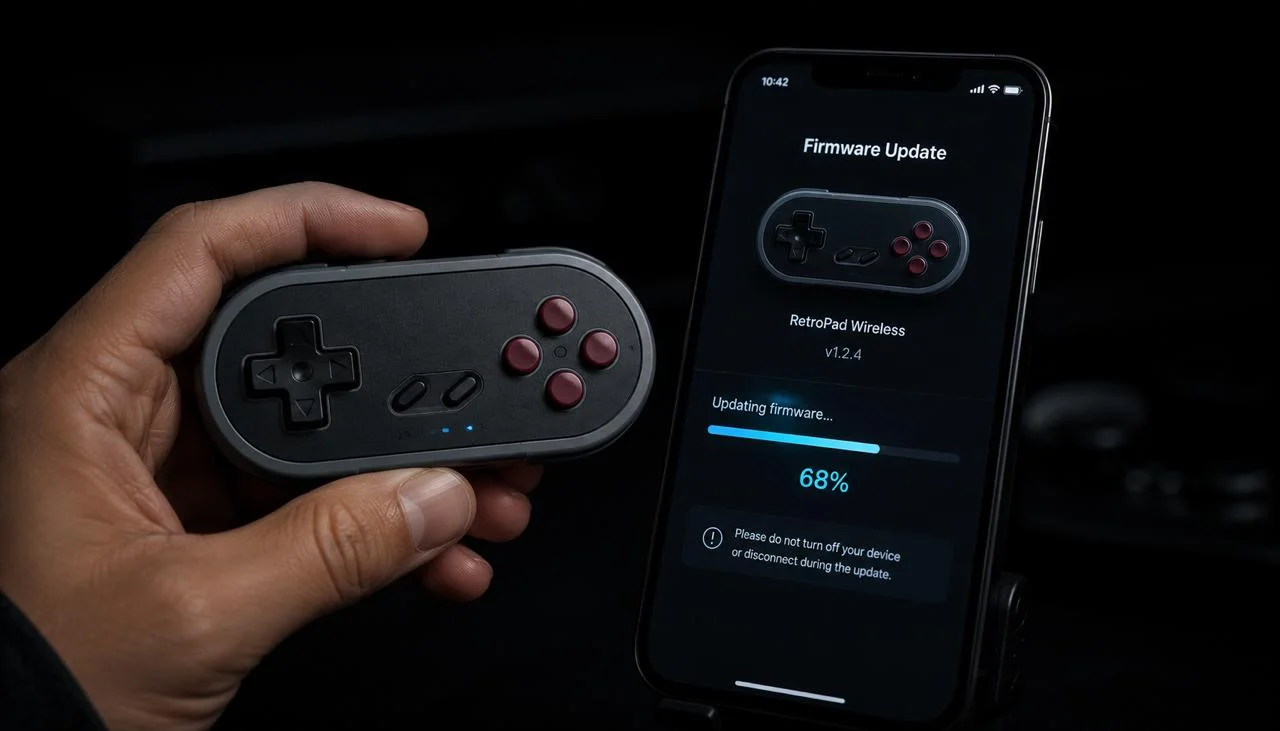
An 8BitDo firmware update is the official process of flashing new controller software over a wired USB-C connection to fix bugs, add console support, and change button behaviour. The updaters are free and come straight from 8BitDo.
This guide explains how to read your current firmware version, how to flash the right update for your model without bricking the controller, and what to do for each model in the 8BitDo line.
Where to download the 8BitDo firmware updater
Download from the official 8BitDo support portal → — every updater and the Ultimate Software live there, free, direct from the manufacturer. There is no third-party mirror worth using for firmware.
There is no single universal 8BitDo updater. Which file you need depends on your model:
| If you own | Download | Runs on |
|---|---|---|
| Ultimate Bluetooth, Ultimate 2.4G, Ultimate 2 | 8BitDo Ultimate Software | Windows only |
| Pro 2, SN30 Pro, Lite SE, M30, Arcade Stick, Zero 2 | The per-model 8BitDo Updater (one .exe per controller) | Windows only |
Two constraints catch most people before they start:
- Windows only. 8BitDo ships no Mac or Linux updater. You need a Windows PC or VM for the one-time flash.
- Wired USB-C only. Bluetooth and the 2.4G dongle do not carry the firmware protocol, no matter what the pad is paired to.
Downloaded the right file? Confirm your PC actually sees the controller before you flash it — a pad the browser cannot read is a pad the updater will not read either. Check your controller in the browser →
What you need before you start
- 8BitDo firmware ships through Windows-only updaters, so Mac and Linux users need a Windows PC for the one-time update.
- Firmware transfer requires a wired USB-C connection; Bluetooth and the wireless dongle do not carry the firmware protocol.
- The updater is per-model for the Pro 2 and older pads, while Ultimate-series controllers use the 8BitDo Ultimate Software.
- The firmware version is printed on the bottom sticker of every controller and shown in-app once you connect over USB.
- Never interrupt USB power during flashing, and force a reset before assuming a stalled update has bricked the pad.
8BitDo distributes firmware updates through its own software, listed per controller model on its support site. Check the page for your exact model before you update.
Source: 8BitDo official support portal
Check the pad is seen before you flash it
- Power on your 8BitDo controller.
- Open the controller tester in any browser.
- Press any button. JoyCheck shows the firmware reported by the controller, visible in the device info row when expanded.
- Compare against the current version on the 8BitDo support portal (linked above) for your model.
- If you are behind, follow the update path below.
Why do 8BitDo firmware updates matter?
8BitDo firmware updates matter because they add new console modes, fix pairing and mode-switch bugs, cut input latency, and tune the stick deadzone the controller applies before it reports input. Each update treats a different class of problem, so keeping firmware current is the cheapest way to keep an 8BitDo pad working across platforms. Here are the five reasons to keep firmware current.
- New mode support. 8BitDo controllers ship with multiple modes: Switch, Xbox, Android, macOS, and others. Firmware updates add modes (Switch 2 mode rolled out in 2025) and fix mode-switching bugs.
- Pairing reliability. Older firmware on Pro 2 controllers had intermittent Bluetooth pairing failures with Windows 11. 2024 firmware fixed this.
- Input latency improvements. Firmware releases have tightened the Bluetooth polling cycle on several models. 8BitDo does not publish before-and-after latency figures, so treat any exact millisecond claim you read, including ours, as unverified until you measure your own pad.
- Stick deadzone changes. Firmware controls the controller’s internal deadzone before reporting input. Updates tighten the deadzone on Hall-effect models, visible immediately in JoyCheck as smaller resting values.
- Mode-switch fixes. Some early firmware versions corrupted button mappings when switching between modes (for example, Switch to Xbox via the mode toggle). Recent firmware handles this cleanly.
What should you do to update 8BitDo firmware?
Work the update path in cost order and stop at the first option that brings the controller back current. Every step here is free except the last, and most pads never need more than the standard Windows updater. The table sets the order; the notes below walk each option.
| Step | Cost | Time | What it does |
|---|---|---|---|
| Check current firmware | Free | 60 seconds | Connect the controller, expand the device info row, read the firmware string |
| Run 8BitDo Updater (Windows) | Free | 5 minutes | Standard path for most 8BitDo controllers; the updater is per-model |
| Mac or Linux: borrow a Windows PC | Free | 10 minutes | 8BitDo ships no Mac or Linux firmware updater |
| RMA to 8BitDo support | RMA | Last resort | When the updater fails repeatedly or the controller is bricked mid-update |
Check current firmware first. The fastest path is JoyCheck: connect the controller, expand the device info row, and read the firmware string. If JoyCheck does not expose the version for your model, the firmware version is also printed on the bottom sticker of the controller and shown in the 8BitDo app once you connect over USB.
Run the 8BitDo Updater on Windows. This is the standard path for most 8BitDo controllers. The updater is per-model, so there is no single universal tool. You need the right .exe for your specific controller.
On Mac or Linux, borrow a Windows PC. 8BitDo does not ship Mac or Linux firmware updaters. Use a Windows VM or a Windows PC for the one-time firmware update over USB-C.
RMA as the last resort. If the updater fails repeatedly, or the controller is bricked mid-update (rare but possible), contact 8BitDo support directly. They handle warranty repairs and bricked-firmware recovery via mail-in service. If an update completes but the controller then keeps dropping out, see why a Bluetooth controller disconnects.
Which firmware notes apply to each 8BitDo model?
The firmware story differs by model because each pad has its own codebase, mode set, and update cadence. Match your controller to the notes below before you flash anything.
- Pro 2. Most common model needing updates. 2024 firmware fixed Windows 11 Bluetooth pairing. 2025 added a native Steam Deck profile.
- Ultimate Bluetooth + 2.4G. Use the 8BitDo Ultimate Software (not the generic updater). It lets you remap buttons, set stick sensitivity, and tune trigger pressure points alongside the firmware update.
- SN30 Pro / Lite SE / M30. Standard updater, per-model. Modes: Switch (default), Xbox/D-Input, Android. Mode switch is done via a button combo (for example, Start + Y for Switch mode on SN30 Pro).
- Ultimate 2 (released 2025). Hall-effect sticks plus adaptive trigger emulation. Firmware updates roll out frequently, so check every 2 to 3 months.
- Pro Arcade Stick, F-Stick, Zero 2. Older models. Firmware updates are rare now, and most are on the final shipped version.
Which 8BitDo models support firmware updates?
Every current 8BitDo model supports firmware updates over a wired connection, but the tool splits by series: the per-model Windows updater covers the Pro 2 and the classic line, while the 8BitDo Ultimate Software is the path for Ultimate-series pads. None of them ships a native Mac or Linux updater.
| Updater path | Pro 2 | Ultimate BT | SN30 Pro | M30 | Lite SE | Arcade Stick |
|---|---|---|---|---|---|---|
| 8BitDo Updater (Windows) | ✓ | partial | ✓ | ✓ | ✓ | ✓ |
| 8BitDo Ultimate Software | ✗ | ✓ | ✗ | ✗ | ✗ | ✗ |
| Wired connection required? | Yes | Yes | Yes | Yes | Yes | Yes |
| Mac/Linux native updater? | ✗ | ✗ | ✗ | ✗ | ✗ | ✗ |
What firmware-update gotchas should I avoid?
Most failed 8BitDo updates trace back to the connection mode, a default mapping reset, or a stalled flash rather than a dead controller. Work through the four common traps below before you assume the pad is broken.
The updater says “no device detected” but the controller is plugged in. Two causes. First, you are connected via the dongle or Bluetooth, and the updater requires a direct USB cable. Second, the controller is in the wrong mode. Some 8BitDo controllers need to be in D-Input mode (not Switch or Xbox mode) for the updater to see them. Check the model’s manual for the mode-switch combo.
The update succeeded but the controller does not work the same as before. New firmware can change default button mappings or deadzone behaviour. Most updaters offer a “Restore default mapping” button, so try that first. Some models also need a manual factory reset after a firmware update, typically Start + Select + L + R held for 5 seconds.
The updater froze mid-flash, so is the controller bricked? Do not panic. Hold the controller’s power button or pair button for 10 seconds to force a reset. If the LEDs come back on, retry the update with a different USB cable. If the LEDs stay dark, the controller is in DFU (firmware recovery) mode, and the updater should still see it, so retry. If both fail, contact 8BitDo support.
After the update, the controller pairs with Switch but not PC. The mode switch was reset to its default (Switch). Use the mode-switch combo (for example, Start + X for Xbox mode) to put it back in a PC-compatible mode.
When should you RMA an 8BitDo controller?
RMA the controller to 8BitDo support after every firmware-update path above has failed and one of three end-of-life signs is present. Standard warranty is 12 months from the purchase date, so check your date before you mail anything.
- The controller is fully unresponsive, with no LEDs and no button input.
- The updater repeatedly fails to detect the device.
- The controller works only via cable, never via wireless, and the steps above did not fix it.
“A frozen flash does not have to mean a dead pad. Try a 10-second power-button reset and a different USB cable before you send the controller back, and treat the mail-in route as the last step, not the first.”
Taimoor Bamazai, founder, Elites Algorithm
How do I confirm the firmware update worked?
Confirm the update worked by running a full controller test in JoyCheck and checking that the reported firmware version matches the latest that 8BitDo publishes for your model on its official support portal [1]. A clean test plus a current version number is the whole confirmation.
- Open the gamepad tester in any modern browser.
- Press any button, and the live input diagram appears.
- Run through every input: both analog sticks, all face buttons, D-pad, both bumpers and triggers, Start, Select, Home (and gyro on Ultimate models).
- Confirm each input lights up in the diagram.
- Confirm the version against 8BitDo’s support site. The Gamepad API carries no firmware field, so read it from the bottom sticker of the controller or from the 8BitDo app over USB.
Firmware releases can also change wireless timing, so finish with the controller polling rate test to confirm the update did not lower your report rate.
If everything responds and the firmware is current, you are done.
8BitDo documentation used for this guide
- 8BitDo official support portal. The manufacturer’s support site, which hosts the per-model firmware updaters, the 8BitDo Ultimate Software, and the current firmware version for each controller.
Does 8BitDo make a Mac firmware updater?
No. All 8BitDo firmware updaters are Windows-only. Mac users need a Windows VM or a Windows PC for the one-time firmware update.
Can I update firmware over Bluetooth or the wireless dongle?
No. Firmware transfer requires a wired USB-C connection. The wireless dongle and Bluetooth modes don't support the firmware protocol.
How often does 8BitDo release firmware updates?
Roughly quarterly for active models (Pro 2, Ultimate, SN30 Pro). Less frequently for older or discontinued models. Major updates (new platform support, new modes) get press attention; minor updates roll out quietly on the support site.
Why are there so many different 8BitDo updaters?
Each model has its own firmware codebase and updater binary. 8BitDo started bundling all updaters into the 8BitDo Ultimate Software for Ultimate-series controllers, but the Pro 2 and older models still use per-model updaters. There's no plan to unify them across the full product line.
Does updating firmware reset my button mappings?
Usually no, but some major version jumps (2.x → 3.x firmware) do reset mappings to factory defaults. Always export your custom mappings via the 8BitDo Ultimate Software before updating, just in case.
My Pro 2 works on Switch but not PC after firmware update, what's wrong?
The mode reset to Switch. Hold Start + X for 3 seconds to switch the Pro 2 into Xbox mode (PC-compatible). The home button LED color indicates the mode (green = Switch, blue = Xbox, yellow = Android, gray = D-Input).
Can I downgrade firmware?
Officially no, 8BitDo updaters only flash the latest version. Unofficially, some community-maintained archives keep older firmware versions for specific models. Use at your own risk; downgrading can void warranty.
JoyCheck shows my 8BitDo as "Generic HID" instead of by model name, is firmware out of date?
Usually no, the controller mode determines what name the browser sees. D-Input mode reports "Generic HID" on most browsers. Switch to Xbox mode (Start + X for most models) to report as an Xbox controller with a recognizable name.