Rotation · Centre · Pedals · Shifter · Health
Test your steering wheel and pedals. Right in the browser.
Steering Wheel Tester
This browser does not expose the W3C Gamepad API, so the tester cannot run here. Try Chrome, Edge, or Firefox.
Steering
Connect a racing wheel by USB, then press a pedal or button to wake it.
Step 1
The browser sees a normalised axis, never real degrees. The degree readout converts using the rotation you declare above.
Pedals
Sweep
Wheel health
Verdicts
Buttons, shifter and paddles
Press each paddle, shifter gear, and rim button: its index lights up with a press count. Use those indices to bind controls in your game.
What the browser can see
- Device
- --
- Axes
- --
- Buttons
- --
- Mapping
- --
- Rumble
- --
Report
Honesty note: every value is observed through the W3C Gamepad API. Degrees are converted from your declared rotation setting, never measured, and force feedback is reported as a capability, not simulated.
A steering wheel tester reads the axes your racing wheel exposes to the browser and turns them into verdicts: rotation range, centre offset, pedal travel and linearity, shifter and paddle mapping. A 60-second guided mapping learns your wheel's real layout first, so it works on Logitech, Thrustmaster and Fanatec alike. No install, no account, and your input never leaves the browser.
- browser-side
- no install
- W3C Gamepad API
Wheels stay invisible until they produce input. Press a pedal once to wake it.
HOW IT WORKS
How do you test a steering wheel in 60 seconds?
Connect and wake it
Plug the wheel in over USB and press a pedal or any button. The Gamepad API keeps a device invisible until it produces input, so one press wakes it and lets the tester see the wheel.
Run the 60-second mapping
Follow four prompts: turn lock to lock and let the wheel settle, then press and release each pedal. The tester learns your wheel's real axis layout, including inverted and combined-pedal setups.
Sweep, read, export
Run a slow sweep on each pedal, read the verdicts and the health score, then export the JSON or CSV report for a forum thread, a warranty claim, or a before-and-after comparison.
READING THE RESULTS
What does the wheel tester tell you?
Four readings cover almost every real wheel fault. These are working bands from our own diagnostic testing, not a manufacturer specification: the tester shows you the observed number and the band it falls in, and the verdict text tells you what to do about it.
Rotation range
The share of its axis your wheel actually sweeps lock to lock. Near 100% means full range is reaching the browser; a shortfall usually points at the rotation setting in your wheel's driver software.
Centre offset
Where the wheel rests when you let go. Up to about 0.02 is sensor noise. Beyond that, recalibrate the centre; an offset that keeps returning is the wheel version of stick drift and suggests sensor wear.
Pedal travel and linearity
A slow press should produce a smooth, monotonic ramp to full travel. Dips and sudden jumps at the same spot, press after press, are the classic signature of a worn potentiometer.
Combined-pedals mode
Throttle and brake sharing one axis, so pressing both cancels out. The tester flags it automatically; the fix is the separate-pedals setting in your wheel's driver software, then a quick remap.
The JoyCheck controller tester family includes a steering wheel tester: plug in a racing wheel, run one guided mapping, and read rotation range, centre offset, pedal travel and a health score straight from the W3C Gamepad API, with nothing sent to a server.
Rotation range · Centre offset · Pedal linearity · Health score · 7 min read
A steering wheel tester reads the axes a racing wheel exposes to the browser and turns them into verdicts you can act on. Wheels are messier than gamepads: every brand puts steering and pedals on different axis numbers, some invert them, and Logitech’s drivers can merge throttle and brake into one shared axis. That is why this tester starts with a 60-second guided mapping instead of assuming a layout.
The W3C Gamepad specification defines controller axes as normalised values in the range -1.0 to 1.0, with no physical unit attached[1]. A browser therefore cannot measure a wheel’s rotation in degrees; it can only measure how much of the normalised range the wheel uses and where it rests. Every number in this tester is one of those observed values, and the degree readout is explicitly a conversion from the rotation setting you declare, never a measurement.
Source: W3C Gamepad specification
Updated on 2026-07-25 by Taimoor Bamazai, founder of Elites Algorithm (Dublin, Ireland and Pakistan) and the builder behind JoyCheck.
Wheels, pedals and axis counts
- A browser reads a wheel through the same Gamepad API a browser game would, so it can verify what actually reaches your PC: steering, pedals, shifter, paddles.
- Axis layouts differ per brand, driver, and mode, so the tester maps your wheel by asking you to use it, not by guessing from the model name.
- The two wear signatures that matter are an off-centre rest (the wheel version of stick drift) and a notchy pedal sweep (the worn-potentiometer fingerprint).
- Degrees are declared, never measured: the API exposes a unitless -1 to +1 axis, and any tool claiming to measure degrees in a browser is converting.
- Force feedback is a driver feature. The browser sees at most a rumble actuator, and the tester reports that capability honestly instead of simulating a test.
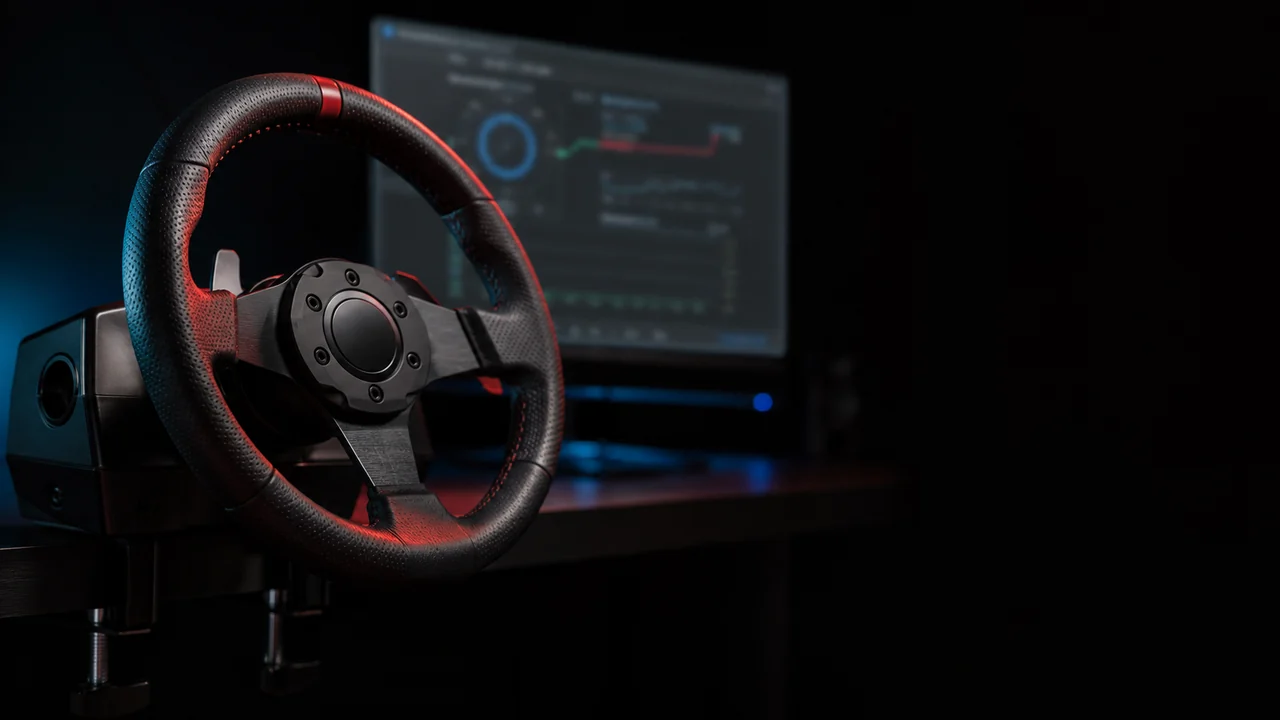
How do you test a steering wheel in the browser?
You test a wheel by letting the page watch you use it. Connect the wheel over USB, press a pedal or button once so the Gamepad API wakes the device, and start the guided mapping. The tester prompts four actions: turn the wheel lock to lock and let it settle, then press and release the throttle, the brake, and the clutch. From those four gestures it learns which axis is which, which direction each pedal travels, and whether your driver is merging pedals onto one axis.
After mapping, everything is live and the profile is saved on your machine for next time.
- Connect and wake the wheel. Plug in over USB and press a pedal. A wheel stays invisible to the page until it produces input.
- Run the guided mapping. Follow the four prompts. A pedal you do not have is one click to skip.
- Read rotation and centre. The range bar shows how much of the axis your wheel sweeps; the centre chip shows how far from true centre it rests.
- Sweep each pedal slowly. Press smoothly to full over a few seconds, hold, release. The sweep plot and verdicts appear immediately.
- Export the report. JSON, CSV, or a copyable summary, for a warranty thread or a before-and-after comparison.
The same no-install checkup covers gamepads on the main controller tester, and the polling rate test times the update rate of any pad or wheel.
Do you need Logitech G HUB, or can the browser test the wheel?
You need both, for different jobs, and confusing the two is why so many wheel problems survive reinstall after reinstall. G HUB and Logitech Gaming Software are configuration tools: they set the rotation limit, the force feedback strength, and the combined-versus-separate pedal mode, and they load the firmware profile. What they do not show you clearly is what your PC actually receives when you drive.
That receiving side is what a browser tester verifies. If the wheel turns but your games see nothing, the split tells you where the fault is: readings alive in the browser mean the wheel and driver are fine and the problem is the game’s binding; readings dead in the browser mean the problem sits in the driver, the cable, or the hardware, and no amount of in-game rebinding will fix it. Our Logitech wheel setup guide walks the driver side step by step.
What does the pedal sweep tell you?
The slow sweep is the closest a browser gets to a bench test of a pedal’s sensor. You press one pedal smoothly to full over a few seconds while the tester records every value it receives, then it examines the press: how far the pedal reached, whether the curve climbed steadily, and whether it dipped or jumped on the way up.
A healthy potentiometer produces a smooth, monotonic ramp. A worn one produces dips and sudden steps at the same physical spot, press after press, because the resistive track inside has worn thin where the wiper spends most of its life. That pattern is the classic worn-potentiometer signature, and catching it early is the difference between a cheap sensor swap and a dead pedal mid-race.
| Sweep result | What it usually means | What to do |
|---|---|---|
| Smooth ramp to 95-100% | Healthy sensor and full travel | Nothing, enjoy it |
| Full travel with 1-2 small dips | Early wear or electrical noise | Re-run slowly; watch whether dips repeat at one spot |
| Repeated dips or a jump above 0.15 | The worn-potentiometer signature | Clean or replace the pedal’s sensor |
| Travel stops short of 90% | Obstruction, damping foam, or a shifted mount | Check the pedal physically, then remap |
| Too-fast press flagged | The sweep cannot judge smoothness | Press over 2-3 seconds and re-run |
These bands come from our own diagnostic testing and are working guides, not a manufacturer specification.
What this tester deliberately does not claim
Two honest limits, stated up front because they are exactly where wheel tools tend to overpromise.
Degrees are a conversion, not a measurement. The Gamepad API hands the page a unitless axis from -1 to +1[1]. If your wheel is set to 900 degrees in its driver, the tester can show you degrees only because you told it that number. What it genuinely measures is the fraction of the axis your wheel sweeps and where it rests, which is what you need for diagnosing range loss and centre drift.
Force feedback cannot be tested from a web page. The API’s haptics support extends to rumble actuators[2], and most wheels expose no actuator to the browser at all; their force feedback is driven by the manufacturer’s driver. The tester reports whether an actuator exists and sends a pulse only when one does. Any browser tool that claims to exercise your wheel’s force feedback motors is testing something else.
Which wheels work?
Any wheel that presents itself to the operating system as a game controller: the Logitech G27, G29, G920 and G923, Thrustmaster’s T150, TMX and T300 family, and most Fanatec bases in their compatibility modes. Axis counts and orderings differ across every one of them, and across driver versions of the same wheel[3], which is why the guided mapping exists. If a wheel runs a proprietary native mode the browser cannot see, switch it to its PC or compatibility mode and re-test.
If your gear is a gamepad rather than a wheel, the main controller tester covers sticks, buttons, triggers and rumble, and the stick drift test isolates the resting-value check. This wheel tester is also one of the four embeddable JoyCheck widgets, so a sim-racing community or a wheel shop can host it with a single iframe.
Sources
- W3C. “Gamepad.” W3C Working Draft. w3.org/TR/gamepad/
- MDN Web Docs. “Gamepad API.” developer.mozilla.org/en-US/docs/Web/API/Gamepad_API
- MDN Web Docs. “Gamepad.axes.” developer.mozilla.org/en-US/docs/Web/API/Gamepad/axes
Frequently asked questions about testing a racing wheel
How do I test my Logitech G29 or G920 without a game?
Plug the wheel in over USB, open a browser wheel tester, and press a pedal or button so the Gamepad API wakes the device. Run the guided mapping once, then every axis and button is live on screen: steering position, each pedal's travel, shifter and paddle presses. No game, driver suite, or install is required for this check, because the browser reads the same inputs a game would.
Why are my pedals not working or reading nothing?
Three common causes. First, the Gamepad API hides a wheel until it produces input, so press a pedal once and the readings appear. Second, some pedal axes report a placeholder value until first touched, so tap each pedal before judging it. Third, on Logitech wheels the driver can run in combined-pedals mode, where throttle and brake share one axis and cancel each other; switch the driver setting to separate pedals and remap.
What is combined pedals mode and how do I fix it?
Combined mode reports throttle and brake on a single shared axis: the value rises one way for throttle and the other way for brake, so pressing both cancels out and many games misread the pedals entirely. It exists for older titles that expected one axis. Fix it in the wheel's driver software (Logitech G HUB or Logitech Gaming Software) by selecting separate pedals, then run the mapping again. The tester flags combined mode automatically when it sees both pedals move one axis.
Can a browser measure my wheel's rotation in degrees?
No, and any tool that claims to is converting, not measuring. The W3C Gamepad API reports a steering axis as a normalised value from -1 to +1 with no unit attached. A browser can measure how much of that range your wheel actually uses, which is what this tester reports. The degree readout is a convenience conversion based on the rotation you declare, for example 900 degrees on a G29, and it is labelled that way.
Does force feedback work in the browser?
Almost never for wheels. The web Gamepad API offers at most a rumble actuator interface, and most racing wheels do not expose one to the browser at all; real force feedback effects live in the manufacturer's driver, not in the web API. This tester reports honestly whether your wheel exposes a rumble actuator and offers a pulse test only when one exists. To test true force feedback, use the manufacturer's software or an in-game test.
Why does my wheel not centre properly?
Let go of the wheel and read the resting centre offset in the tester. An offset up to about 0.02 on the normalised axis is ordinary sensor noise. Between 0.02 and 0.10, recalibrate the centre in the wheel's driver software. Above 0.10, or if the offset returns after every recalibration, the position sensor or its mechanical linkage is likely worn, and on potentiometer wheels that usually means a hardware repair rather than a settings fix.
Which wheels work with this tester?
Any wheel the browser sees as a gamepad works: Logitech G27, G29, G920 and G923, Thrustmaster T150, TMX and T300 in their standard modes, and most Fanatec bases in their compatibility modes. The layout of axes varies wildly between models and drivers, which is exactly why the tester starts with a guided mapping instead of assuming one brand's layout. If your wheel has a special native mode the browser cannot see, switch it to its PC or compatibility mode.
Check your wheel before your next race
No install, no account. Your inputs never leave your device.