Controller · PS4 · DualShock 4
PS4 controller test. Check a DualShock 4 in your browser.
Test your DualShock 4, including the touchpad click
Connect the pad, rest it flat with your thumbs off both sticks, and read the resting X and Y values. On a DualShock 4, JoyCheck warns at 0.08 and fails at 0.22.
Axis monitor
Trigger test
Vibration test
Device info
- Name
- —
- Vendor ID
- —
- Product ID
- —
- Type
- —
- Mapping
- —
- Buttons · Axes
- —
Browser support
- ChromeSupported
- EdgeSupported
- FirefoxSupported
- SafariLimited
Advanced diagnostics
Buttons
Controller diagram
Deadzone & response curve
Latency tester
Event log
Input heatmap
Keyboard
Keyboard fallback active. WASD/Arrows for sticks, 1-4 face buttons, Q/E bumpers, Z/C triggers.
Connect the DualShock 4 by USB or Bluetooth and JoyCheck reads its sticks, triggers, buttons and touchpad click live through the W3C Gamepad API. The resting axis values tell you whether a stick is drifting or a game is simply loose.
- in the browser
- no driver needed
- W3C Gamepad API
Works best on desktop. Use a micro-USB cable that carries data.
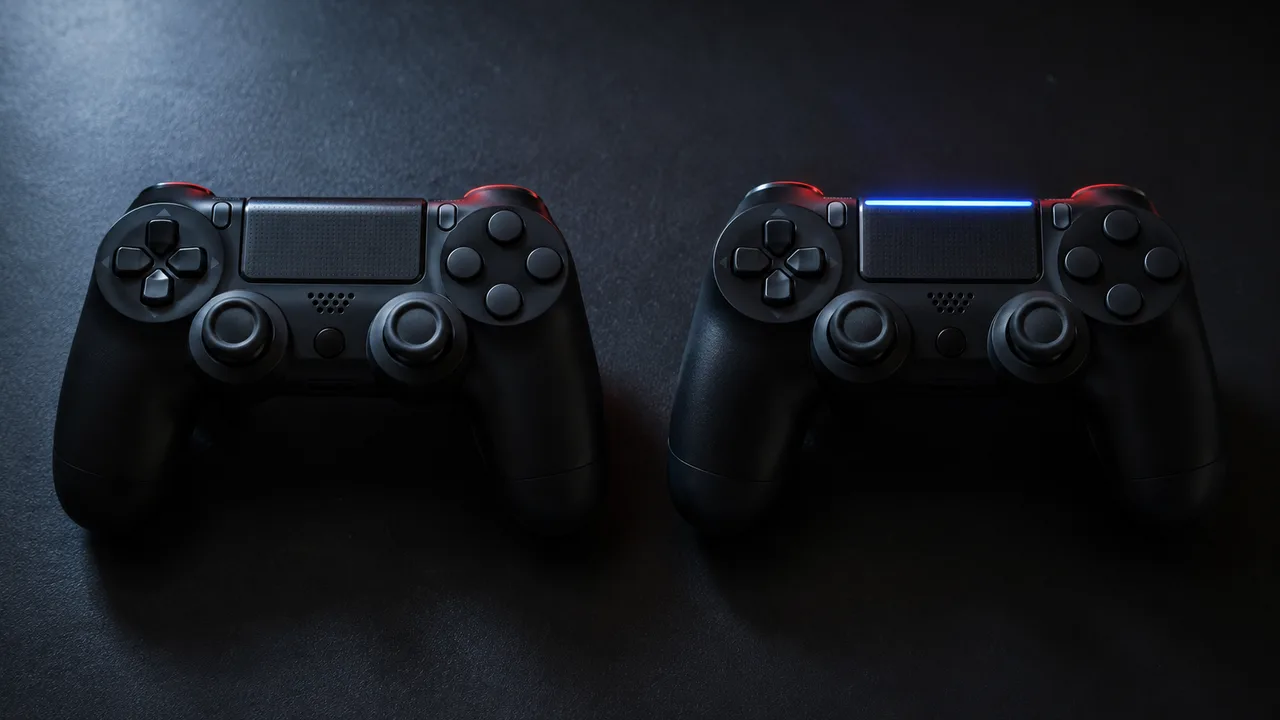
A PS4 controller test in the browser turns a vague complaint into a number. Connect the DualShock 4 by USB or Bluetooth, and the tool above reads it through the Gamepad API so you can see whether a stick really rests off centre, whether a trigger reaches full travel, and whether the touchpad click still registers.
The short version for a DualShock 4
- The PS4 has no stick calibration screen either, so the reading has to come from a PC.
- JoyCheck warns on a DualShock 4 at a resting value of 0.08 and fails it at 0.22.
- Two hardware revisions exist, and the touchpad tells you which one you are holding.
- A counterfeit pad usually gives itself away in the mapping, the touchpad or the trigger sweep.
- No driver is needed for a browser test on Windows or macOS.
The W3C Gamepad API specification reports each analog axis on a normalised scale from -1.0 to +1.0, with 0.0 as the neutral centre [1].
Source: W3C Gamepad API specification
How do you test a PS4 controller in the browser?
Plug the DualShock 4 into a computer with a micro-USB cable, open the tool at the top of this page, and press any button so the browser registers the pad. Then sweep both sticks through their full circle, pull L2 and R2 to the stop, press every face button and D-pad direction, and click the touchpad down. Each input lights the moment it fires.
Everything happens inside the browser, and your controller input never leaves the machine. That makes this a safe check on a borrowed computer, which matters most when you are testing a used pad before handing over money.
Which DualShock 4 are you holding?
Sony shipped two hardware revisions and the touchpad tells them apart at a glance. The original CUH-ZCT1 keeps its light bar on the front edge, hidden from you while you play. The later CUH-ZCT2 shows a thin strip of that light bar through the top of the touchpad, so you can see the colour without turning the pad around, and it carries data over the USB port rather than power alone.
| Difference | CUH-ZCT1 (2013) | CUH-ZCT2 (2016) |
|---|---|---|
| Light bar visible from the front | No | Yes, a strip through the touchpad |
| USB port | Power and audio | Power, audio and data |
| Reads in the browser | Identically | Identically |
The revision changes nothing about the test. Both report the same standard mapping and the same axis scale, so the same thresholds below apply to either. It matters when you buy a replacement stick module, because the internal boards differ and the parts listings separate them.
What resting value counts as DualShock 4 drift?
Take your hands off both sticks, set the pad flat on a table, and read the axis values. A healthy DualShock 4 rests very close to zero. The tool keeps per-family thresholds because stick modules differ in idle noise, and it only calls drift when at least 80 percent of a rolling window of 60 to 90 readings stays past the warn threshold.
| Controller | Warn threshold | Fail threshold |
|---|---|---|
| DualShock 4 (PS4) | 0.08 | 0.22 |
| DualSense (PS5) | 0.08 | 0.22 |
| Xbox Wireless Controller | 0.10 | 0.25 |
| Joy-Con (Switch) | 0.05 | 0.15 |
Because one spike never triggers a verdict, a brief flick as you release the stick is ignored. Only a resting point that stays displaced counts as drift. The stick drift test runs the same engine with the axis monitor placed first if you want that reading on its own.
Connecting a DualShock 4 to a PC
Over USB, use a cable that carries data. Many micro-USB cables sold for charging carry power only, and on one of those the pad charges and never appears in the browser. That single fact explains most “my PC does not see my DualShock 4” reports.
Over Bluetooth, hold the PS and Share buttons together for about five seconds until the light bar flashes in a fast double pulse, then add it from your system’s Bluetooth menu. Neither route needs a driver for testing: Windows and macOS both expose the pad to the Gamepad API on their own. Tools like DS4Windows exist to make games treat the pad as an Xbox controller, which is a compatibility job and not a diagnostic one. The PS4 connection guide walks through both routes in full.
Spotting a counterfeit DualShock 4 in the readout
Fake DualShock 4 pads are common in the second-hand market and the tester exposes them faster than a visual inspection does. MDN documents the standard mapping a genuine pad reports [2], and three deviations show up repeatedly.
- The mapping is not standard. Buttons land in the wrong slots or the readout reports a custom layout rather than the standard one.
- The touchpad click does nothing. Many clones fit a touchpad that looks right and is not wired as a button.
- The triggers jump. L2 and R2 snap from 0.00 to 1.00 with nothing in between, which means digital switches behind analog-looking triggers.
None of these is proof on its own, and a genuine pad with a fault can produce one of them. Two or three together, on a pad bought cheaply, is as close to a verdict as a browser can give you.
The touchpad, the light bar and the audio jack
The touchpad click is a real button and reports like one, so a dead click is visible in the test. Touch positions on the pad surface are not part of the Gamepad API, so a browser cannot draw your finger’s path, and that absence is a limitation of the standard rather than a fault in your pad.
The light bar and the 3.5 mm audio jack sit outside the API entirely. Neither is testable here, and the honest way to check them is a console: pair the pad to a PS4 and listen through a wired headset. What the browser is good for is the electromechanical half, which is where nearly every DualShock 4 fault actually lives.
What the test tells you about repair
The resting value decides the next move. Just above 0.08 is usually dust, and cleaning clears it. Still above 0.22 after a recalibration means a worn potentiometer track, and no software setting repairs that. A deadzone only hides it while the offset keeps growing.
| Resting value | Likely cause | First move |
|---|---|---|
| Under 0.08 | Pad is healthy | Nothing |
| 0.08 to 0.22, newly appeared | Debris around the stick | Clean with compressed air and isopropyl alcohol |
| 0.08 to 0.22, survives cleaning | Early wear | Recalibrate on a PC, then measure again |
| Over 0.22 after recalibration | Worn potentiometer | Replace the stick module |
| Touchpad click dead | Switch or ribbon cable | Open and reseat, or suspect a counterfeit |
The PS4 controller repair guide covers the teardown, and the PS4 calibration guide covers the recentring step. iFixit publishes module-level repair guides for the pad [3]. To check a DualSense instead, the PS5 controller test is the same page for that pad, and the all-in-one controller tester reads every controller the browser can see.
This page in other languages
The DualShock 4 edition also exists in Portuguese and Arabic, each written for its own market: testar controle PS4 (português) and فحص يد بلايستيشن 4 (العربية).
Frequently asked questions about testing a PS4 controller
How do I test a PS4 controller in a browser?
Connect the DualShock 4 to a computer with a micro-USB data cable or pair it over Bluetooth, open the tester on this page, and press any button so the browser registers the pad. Every stick, trigger, face button, D-pad direction and the touchpad click then reports live. Nothing installs and nothing is uploaded.
What resting value means my DualShock 4 has drift?
JoyCheck warns on a DualShock 4 at a resting value of 0.08 and fails it at 0.22, on the normalised -1.00 to +1.00 scale. A steady offset in between usually clears after cleaning or a recalibration. A value that stays above 0.22 after a recalibration is mechanical wear in the stick module.
Which DualShock 4 model do I have?
Look at the touchpad. The original CUH-ZCT1 hides its light bar on the front edge of the pad, so you cannot see the colour while playing. The later CUH-ZCT2 shows a thin strip of the light bar through the top of the touchpad itself and adds data over USB. Both read identically in the browser.
Can I calibrate a DualShock 4 on the PS4?
No. The PS4 system software has no stick calibration screen. There is a reset pinhole beside the L2 shoulder and a controller reset in the settings, and both restore pairing rather than the stick centre. A PC and a browser are how you turn the stick's state into a number.
Will a fake DualShock 4 show up in the test?
Often, yes. Counterfeit pads commonly report a non-standard button mapping, miss the touchpad click entirely, or return triggers that jump straight from 0.00 to 1.00 instead of sweeping through the range. Any of those in the readout is a strong signal the pad is not a Sony unit.
Does the DualShock 4 need a driver on a PC?
Not for a browser test. Windows and macOS both expose the pad to the Gamepad API over USB and Bluetooth without extra software. Driver tools such as DS4Windows exist to make games see the pad as an Xbox controller, which is a game-compatibility job rather than a testing one.
Turn a vague controller complaint into a number
No install, no account. Your inputs never leave your device.