Controller · PS5 · DualSense
PS5 controller test. Check a DualSense in your browser.
Test your DualSense before you decide anything
Connect the pad, set it flat with your thumbs off both sticks, and read the resting X and Y values. On a DualSense, JoyCheck warns at 0.08 and fails at 0.22.
Axis monitor
Trigger test
Vibration test
Device info
- Name
- —
- Vendor ID
- —
- Product ID
- —
- Type
- —
- Mapping
- —
- Buttons · Axes
- —
Browser support
- ChromeSupported
- EdgeSupported
- FirefoxSupported
- SafariLimited
Advanced diagnostics
Buttons
Controller diagram
Deadzone & response curve
Latency tester
Event log
Input heatmap
Keyboard
Keyboard fallback active. WASD/Arrows for sticks, 1-4 face buttons, Q/E bumpers, Z/C triggers.
Connect the DualSense by USB-C or Bluetooth and JoyCheck reads its sticks, triggers and buttons live through the W3C Gamepad API. You see the real axis values, so stick drift shows up as a number rather than a feeling. No install, no account.
- in the browser
- no install
- W3C Gamepad API
Works best on desktop. Connect the DualSense there.
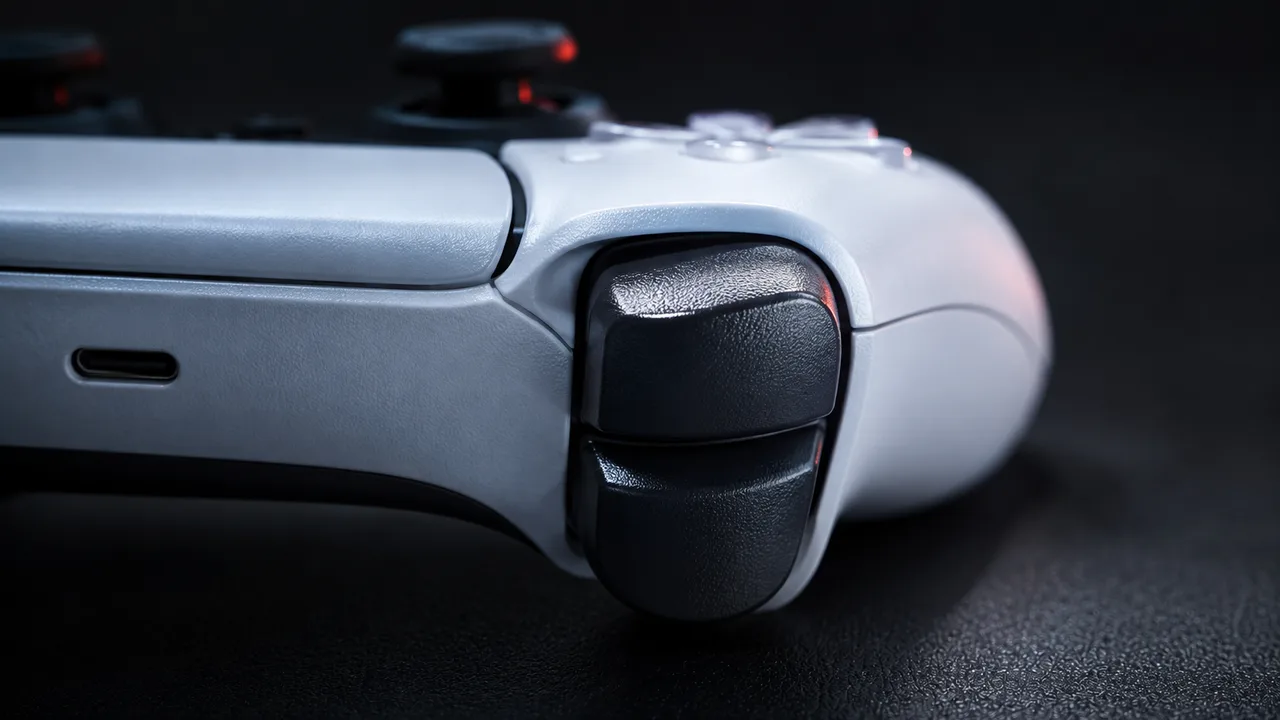
A PS5 controller test in the browser answers one question in about thirty seconds: is this DualSense still reporting clean values, or is it drifting? Connect the pad by USB-C or Bluetooth and the tool above reads it through the Gamepad API, the open W3C standard, so you see the actual axis numbers instead of guessing from how a game feels.
What a DualSense test can and cannot read
- The DualSense has no calibration screen on the PS5, so a PC and a browser are the normal way to see real numbers.
- JoyCheck warns on a DualSense at a resting value of 0.08 and fails it at 0.22.
- The browser reads L2 and R2 travel from 0.00 to 1.00, but never the adaptive resistance behind it.
- USB-C removes the radio and the battery as suspects, which makes a reading worth arguing about.
- The measured resting value is your evidence before you spend money on cleaning, a module or a new pad.
The W3C Gamepad API specification reports every analog axis on a normalised scale from -1.0 to +1.0, with 0.0 as the neutral centre [1].
Source: W3C Gamepad API specification
How do you test a PS5 controller in 30 seconds?
Connect the DualSense to a computer with a USB-C cable, open the tool at the top of this page, and press any button so the browser registers the pad. Then circle both sticks once through their full range, pull L2 and R2 to the stop, and press each face button, the D-pad and the touchpad click in turn. Anything that works lights up the moment you touch it.
The whole check runs inside your browser and your controller input never leaves your machine. Nothing is installed and nothing is uploaded, so testing a used DualSense before you pay for it costs you nothing but the cable.
What resting value counts as DualSense drift?
Let go of both sticks, set the pad flat, and read the axis values. A healthy DualSense rests very close to zero. JoyCheck keeps separate thresholds per controller family, because stick modules vary in how much idle noise they produce, and it only calls drift when at least 80 percent of a rolling window of 60 to 90 readings stays past the warn threshold.
| Controller | Warn threshold | Fail threshold |
|---|---|---|
| DualSense (PS5) | 0.08 | 0.22 |
| DualShock 4 (PS4) | 0.08 | 0.22 |
| Xbox Wireless Controller | 0.10 | 0.25 |
| Joy-Con (Switch) | 0.05 | 0.15 |
Those are the numbers the tool itself runs on. A single spike does not trigger anything, because a stick flicks briefly as you release it and that is normal. Only a resting point that stays displaced counts.
If you want the same reading isolated from everything else on screen, the stick drift test mounts the same engine with the axis monitor front and centre.
Why does the PS5 have no calibration menu?
Sony ships no option in the PS5 system software for recentring the DualSense sticks. What exists is the small reset button on the back of the controller and the controller reset in the system settings, both of which restore pairing and firmware state rather than the stick centre. Sony documents controller pairing and resetting in its own accessories support [3].
That gap is exactly what makes a browser reading useful to a PS5 owner. It is the straightforward way to turn the stick’s condition into a number instead of an argument about whether the camera really drifted. If the pad does need recentring afterwards, the DualSense calibration guide covers the PC-side steps, and the PS5 stick drift guide goes deeper on the failure itself.
How do adaptive triggers and haptics read in a browser?
The browser reads L2 and R2 as a value between 0.00 and 1.00, so a trigger that stops at 0.82 or refuses to return to 0.00 is visible immediately. What it cannot read is the variable resistance the adaptive triggers apply: a game drives that through Sony’s own interface, which is not part of the Gamepad API surface. Trigger travel is a hardware question; trigger feel is a game question.
Vibration works differently again. Where the browser supports the haptic actuator interface, the tool can fire a pulse so you feel both motors and can tell a dead one from a quiet one. If nothing fires, suspect the browser before the controller: this is the part of the API with the patchiest support, and MDN documents which interface each browser exposes [2]. The controller vibration test drives each motor on its own if you want to isolate them.
USB-C or Bluetooth for a PS5 controller test?
Take the cable. USB-C removes radio interference, range and a low battery from the list of things that could explain a bad reading, so what you measure is the stick module and not the connection. If the DualSense only stutters over Bluetooth and behaves on the cable, you have found a link problem, not drift.
Check that the cable carries data. Plenty of bundled USB-C cables are wired for power only, and on one of those the controller charges happily and never appears in the browser at all. MDN documents how the axis values are exposed once the pad is visible [4].
What changes on a DualSense Edge?
The thresholds are identical, because the Edge uses the same normalised scale and the same stick-noise profile. Two things do change, and both work in your favour after a failed test.
The Edge takes user-replaceable stick modules, so a fail at 0.22 becomes a parts order rather than a new controller. It also exposes stick sensitivity and deadzone profiles in the PS5 accessories menu, which the standard DualSense does not have, so you can raise a deadzone at the system level while you wait for the replacement module instead of editing every game one at a time.
Repair or replace: what does the number say?
The resting value decides. Just over 0.08 is usually contamination, and cleaning is enough. Still over 0.22 after a recalibration means the potentiometer track is worn, and no software setting repairs a worn track. It only hides it.
| Resting value | Likely cause | First move |
|---|---|---|
| Under 0.08 | Controller is healthy | Nothing |
| 0.08 to 0.22, newly appeared | Dust around the stick | Clean with compressed air and isopropyl alcohol |
| 0.08 to 0.22, survives cleaning | Early wear | Recalibrate, then measure again |
| Over 0.22 after recalibration | Worn potentiometer | Replace the stick module |
| Trigger never reaches 1.00 | Trigger spring or sensor | Clean, then check the return spring |
Use the reading as evidence before spending. If the DualSense is still in warranty, a measured value gives support a concrete fault instead of a description. iFixit publishes teardown and module-replacement guides if you decide to open the pad yourself [5].
To check a DualShock 4, an Xbox pad or a Switch controller instead, the all-in-one controller tester reads all of them, and the PS4 controller test is the DualShock 4 edition of this page.
This page in other languages
The DualSense edition of this page also exists in six other languages, each written for its own market rather than machine-translated: PS5 Controller Test (Deutsch), test manette PS5 (français), test de mando PS5 (español), testar controle PS5 (português), PS5 kol testi (Türkçe) and فحص يد بلايستيشن 5 (العربية).
Frequently asked questions about testing a PS5 controller
Is there a PS5 controller test I can run without installing anything?
Yes. This page is a browser PS5 controller test: connect the DualSense by USB-C or Bluetooth, press any button, and every stick, trigger and button reports live through the W3C Gamepad API. Nothing installs and no controller data leaves your machine, so you can also check a second-hand DualSense on a borrowed computer.
What resting value means my DualSense has drift?
JoyCheck warns on a DualSense at a resting value of 0.08 and fails it at 0.22, on the normalised -1.00 to +1.00 axis scale. A healthy stick sits very close to zero with your hands off it. Between the two thresholds is usually treatable by cleaning or recalibrating; above 0.22 the stick module is mechanically worn.
Can I calibrate a DualSense on the PS5 itself?
No. The PS5 system software has no stick calibration screen for the DualSense. Sony provides a reset button on the back of the pad and a controller reset in the system settings, and nothing else. That is the reason a PC and a browser are the normal way to read real DualSense axis numbers.
Does the browser test the adaptive triggers?
Only the travel, not the resistance. Through the Gamepad API the browser reads L2 and R2 as a value from 0.00 to 1.00, so you can confirm each trigger reaches full travel and returns cleanly. The variable resistance of the adaptive triggers is driven by a game through Sony's own interface and no browser test can read it.
USB-C or Bluetooth for testing a DualSense?
Use USB-C for a test. A cable removes radio interference and a weak battery as explanations, so what you measure is the stick module rather than the link. Check the cable carries data: many bundled cables are charge-only, and on those the DualSense charges but never appears in the browser.
Does a DualSense Edge change any of this?
The thresholds are the same, but the Edge gives you two extra moves. Its stick modules are user-replaceable, so a failed drift test is a parts order rather than a new controller, and its stick sensitivity and deadzone profiles live in the PS5 accessories menu instead of per game.
Read your DualSense the way the browser reads it
No install, no account. Your inputs never leave your device.