Nacon Controller Not Detected on PC? Test It in Your Browser
A Nacon controller, whether a PS4 joystick Nacon Revolution or the newer Revolution 5 Pro, works on a PC once its mode switch is set correctly, and a browser gamepad test is the fastest way to confirm it. Connect the pad, set the mode, and watch every stick and trigger register live. Rear paddles usually remap onto an existing button, so a paddle registers as that button rather than as an input of its own.
Nacon controller not working on PC? Test every paddle, stick, trigger and the mode switch free in your browser, and confirm your Revolution app remaps landed.
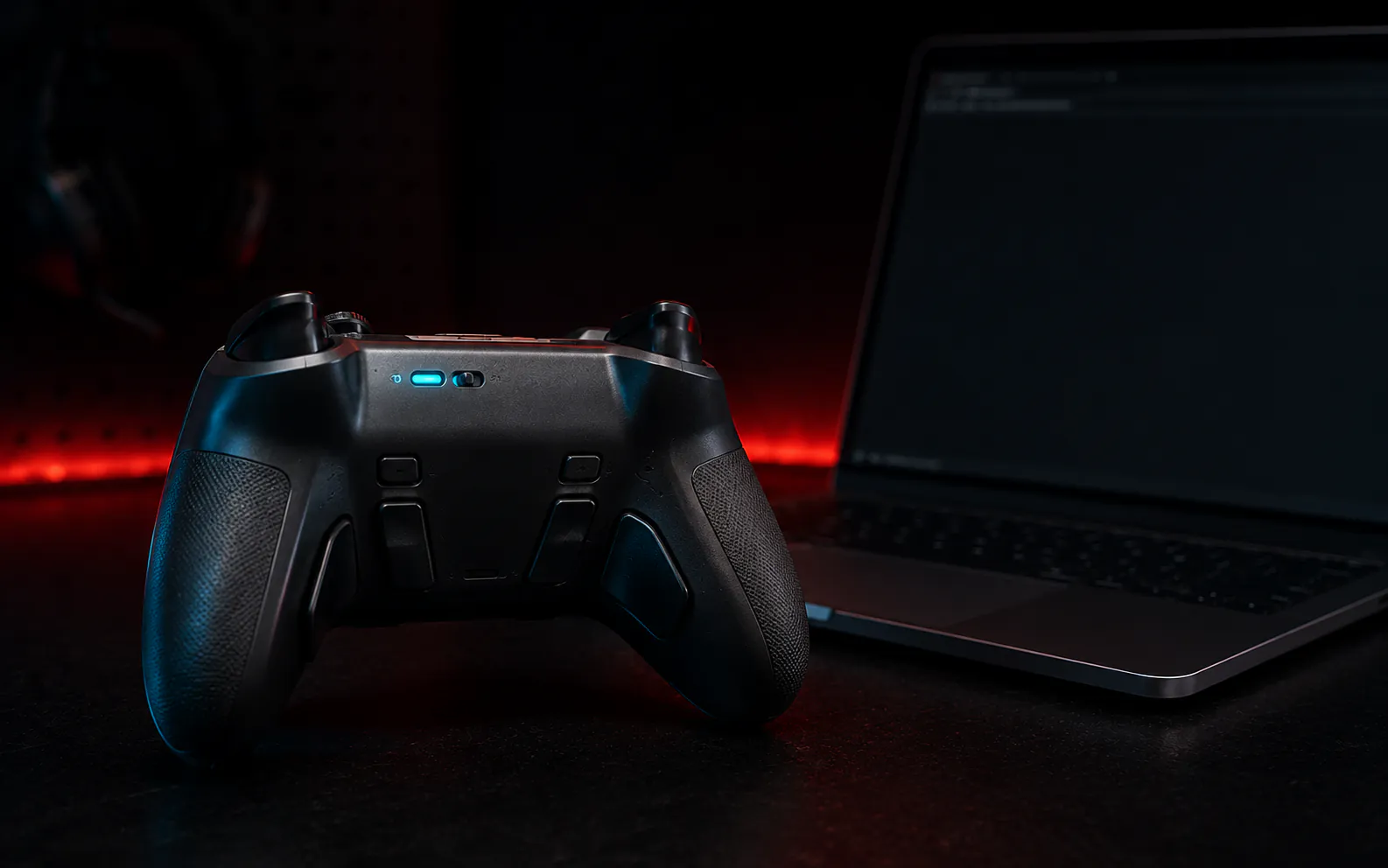
A Nacon controller, whether a PS4 joystick Nacon Revolution or the newer Revolution 5 Pro, works on a PC once its mode switch is set correctly. A browser gamepad test is the fastest way to confirm it. Connect the pad, set the mode, and watch every stick and trigger register live in the controller tester. Rear paddles are the exception: on most models the Revolution app maps a paddle onto an existing button, so the paddle shows up as that button rather than as an input of its own.
Revolution Pro · paddles · mode switch · Hall-effect · Revolution app · 9 min read
A Nacon Revolution is a pro controller, so its whole value is customization: four rear paddles, a mode switch, adjustable dead zones, and profiles from the Revolution app. The catch is that none of that is visible from the outside.
A remap either took effect or it did not, and the only way to know is to press the input and watch what the pad actually sends. That is the gap a browser test closes.
The W3C Gamepad API exposes every controller as a list of buttons and axes. Each button reports a pressed state plus a 0.0 to 1.0 value, and each axis is normalized from -1.0 to +1.0.[1] JoyCheck reads those raw values directly, so when you press a Nacon paddle or pull a trigger, you see the exact button or axis it sends, not a game’s guess at the layout.
Source: W3C Gamepad API specification
Why the PC cannot see your Nacon
- A Nacon controller reaches a PC by wired USB or its own dedicated dongle, never a generic one.
- The underside mode switch decides whether the PC sees the pad at all, so set it before testing.
- A browser test shows every stick, trigger, and rear paddle live, with no drivers.
- Rear paddles read nothing until you map them, so a test confirms a remap actually landed.
- The Revolution 5 Pro uses Hall-effect sticks and triggers, which resist the wear that causes drift.
How do you test a Nacon controller in your browser?
You test it by setting the mode switch, connecting the pad, opening a browser gamepad tester, and pressing each control while you watch the screen. Every stick, trigger, face button, and rear paddle the pad sends shows up in real time. That tells you in seconds whether the hardware and your custom mapping are both working.
Start with the small switch on the underside of the controller. On a Nacon Revolution the mode has to match where you are plugging in, and PC mode is a specific position. Getting it wrong is the most common reason nothing appears.
Then connect by wired USB or the dongle, open the JoyCheck controller tester, and work across the pad: move both sticks, pull both triggers, tap the face and shoulder buttons, and press each rear paddle. Anything that lights up is working, and anything that stays dark is either a fault or an unmapped paddle.
Because the tester runs entirely in your browser, there is no Nacon driver to install first, and your inputs never leave your device.
What does a browser test show on a Nacon pro controller?
A browser test shows each Nacon control as a button that lights up or an axis that moves, including the extra inputs a pro controller adds. The two sticks and both triggers read as axes, and the face and shoulder buttons read as buttons. Each of the four rear paddles reads as whatever button it is currently mapped to.
The table below is a compiled reference for what to expect. Treat it as a guide to the shape of the inputs, since the exact index numbers shift with the mode and the firmware.
| Nacon input | What you see in the test | Notes |
|---|---|---|
| Left and right sticks | Two axes each, resting near 0.00 | Hall-effect sticks on the Revolution 5 Pro should rest true |
| L2 and R2 triggers | Analog axes from 0.0 to 1.0 | A trigger-stop setting shortens the travel a test will show |
| Face and shoulder buttons | Standard buttons | Which button is which depends on PS4 versus PC mode |
| Four rear paddles | Whatever button each is mapped to | An unmapped paddle reads nothing, which is how you confirm a remap |
| D-pad | A hat or four buttons |
If every row above responds the way you expect, the pad and your profile are both healthy, and any remaining problem is in the game’s control settings. If a paddle or trigger reads wrong, the sections below cover the mode switch, the remap check, and when the fault is hardware.
Why is your Nacon controller not detected on PC?
The most common reason a Nacon is not detected on PC is the mode switch, not a broken controller. A Nacon Revolution has a small switch on its underside that selects its operating mode. If it is set for a console rather than PC, the computer sees nothing to test.
Work through the causes in order:
- Set the underside mode switch to the PC position, then reconnect; on the Revolution 5 Pro the PC and XInput mode is the third switch position.[2]
- Use the correct cable or dongle, because a Nacon wireless pad pairs only with its own dedicated dongle and will not work through a generic one.
- If you are configuring profiles, connect wired, since the Revolution app needs a wired connection in the right mode to see the controller.
If the mode is right and the pad still does not appear, borrow the diagnosis path for any unrecognized HID controller. Try a different USB port, avoid unpowered hubs, and confirm the dongle is seated, so you prove the connection before you suspect the hardware.
How do you connect a Nacon controller to a PC?
The connection depends on the model, but every current Nacon pro controller reaches a PC by a wired USB cable or its own wireless dongle. What changes between models is the mode you select and whether a dongle exists at all, so matching the pad to the right path is the first step.
| Nacon controller | PC connection | Mode for PC |
|---|---|---|
| Revolution Pro Controller 3 (PS4) | Wired USB only | PC mode, wired |
| Revolution Unlimited Pro (PS4) | Wired USB or its dedicated dongle | Wired and in the config mode to use the app |
| Revolution 5 Pro (PS5 and PC) | Wired USB-C or dedicated dongle | Mode switch third position, PC and XInput |
| Revolution X and X Pro (Xbox) | Wired USB | XInput, native on PC |
Whichever model you own, the finish line is the same: the pad shows up to the PC as a gamepad. The moment it does, run the cross-platform compatibility check in the browser so you know the inputs before you launch a game, and verify the exact behavior for your model against Nacon support.[2]
How do you confirm a paddle remap actually worked?
You confirm a remap by pressing the paddle and watching which button lights up in the test, because a rear paddle sends nothing of its own until you assign it a button. This is the single most useful thing a browser test does for a pro controller, since the remap lives in software and is invisible otherwise.
Map a paddle to a face button in the Revolution app or the controller’s own menu, then open the tester and press only that paddle. If the mapped button lights up, the profile is live and loaded. If nothing happens, the profile did not save, the wrong profile is active, or the pad is not in the mode that runs your custom settings.
This test-after-mapping loop turns a vague “my paddles are not working” into a precise answer. It tells you whether the problem is the mapping, the active profile, or the paddle hardware, before you spend time re-flashing or reconfiguring anything.
Should you use PS4 mode or PC mode?
Use the mode that matches where you are plugging in, and switch it deliberately rather than leaving it on the last setting. A Nacon Revolution built for PlayStation offers a PS4 mode and a PC mode, and each presents the pad differently. That is why the same controller can feel wrong when the mode is left on the previous device.
On PC, the PC or XInput mode makes the pad behave like a standard Xbox-style controller, which is what most PC games expect. In this mode a game will usually show Xbox button prompts, because it reads the pad through XInput rather than asking which brand it is.
PS4 mode exists mainly for the console and for the minority of PC games that read a PlayStation layout directly. If your prompts or button order look wrong, the mode is the first thing to check, and the tester shows you the active layout immediately so you are not guessing.
Do the Hall-effect sticks and triggers really stop drift?
On the Revolution 5 Pro, yes, the Hall-effect sticks and triggers remove the specific wear that causes classic stick drift. Hall-effect sensors read the position of a magnet with no physical contact, so there is no graphite track to wear down the way a standard potentiometer stick does.
That does not make the pad immune to every fault, but it does mean the resting-value drift that plagues older controllers should not appear. You can confirm it directly: set the pad flat, hands off, and read the stick axes in the calibration tester, where a healthy stick sits within about 0.02 of center.
The Hall-effect and TMR controller guide and the TMR versus Hall-effect buying guide cover the sensing types if you want the background on why contactless sensors behave differently. Separately, stick drift, explained covers the wear mechanism they avoid.
Is the fault the controller, the mode, or the software?
Diagnose in that order, because most Nacon problems are a mode or software issue rather than broken hardware. A pro controller has more settings than a standard pad, so a wrong mode or a profile that did not load explains more faults than a failed component does.
Start with the mode switch and the connection, since those decide whether the pad appears at all. Then check the active profile and any paddle remaps in the tester, which separates a software mapping problem from a hardware one. Only if an input reads dead across every mode and profile is the hardware itself the suspect.
When it genuinely is hardware, a stick that drifts or a trigger that will not reach full range is the same class of fault you would chase on any pad. The resting-value method in how to fix controller stick drift applies directly. Test first, so you replace a confirmed part rather than a guess.
Nacon documentation used here
-
W3C Gamepad API specification. The W3C standard defining a controller as a list of buttons, each with a pressed state and a 0.0 to 1.0 value, and axes normalized from -1.0 to +1.0. This is the interface JoyCheck reads to show each Nacon paddle, stick, and trigger in the browser.
-
Nacon official support. Nacon’s support portal documenting the mode switch positions, the dedicated-dongle requirement, wired configuration for the Revolution app, and the Hall-effect sticks and triggers on the Revolution 5 Pro.
Why is my Nacon controller not detected on PC?
The usual cause is the mode switch on the underside of the controller. A Nacon Revolution has to be in PC mode, which is a specific switch position, before a computer will see it. Set the mode, reconnect by wired USB or the dedicated dongle, and test again.
How do I test a Nacon controller in a browser?
Set the mode switch to PC, connect the pad, open JoyCheck, and press each stick, trigger, and rear paddle. Everything that registers lights up in real time. It needs no drivers, no sign-up, and no game launch, and your inputs never leave your device.
Do the Nacon rear paddles work automatically?
No. Each rear paddle sends nothing until you map it to a button in the Revolution app or the controller's own menu. That is why a browser test is useful: press the paddle and confirm the mapped button lights up, which proves the remap actually loaded.
Can I connect a Nacon controller wirelessly to a PC?
Yes, on models that include a dongle, but only with their own dedicated dongle. A Nacon wireless pad will not pair through a generic receiver. Plug the included dongle into a USB port, or connect by wired USB, then set the controller to PC mode.
What is the mode switch on a Nacon controller for?
It selects which system the pad behaves as, such as PS4 or PC. Each mode presents the controller differently, so the same pad can feel wrong if the switch is left on the previous device. On PC, use the PC or XInput position.
Do Nacon Hall-effect sticks stop drift?
On the Revolution 5 Pro, the Hall-effect sticks and triggers remove the contact wear that causes classic stick drift. Sensors read a magnet with no physical contact, so there is no track to wear down. Confirm the sticks rest near center in a calibration test.
Is my Nacon broken or is it the software?
Usually the software or mode, not the hardware. Check the mode switch and connection first, then confirm the active profile and paddle remaps in a browser test. Only if an input reads dead across every mode and profile is the hardware itself the likely fault.
Test your Nacon controller in the browser
No install, no account. Your inputs never leave your device.