If you have just unboxed a Switch Pro Controller for handheld-PC play and your Steam Deck or Windows machine refuses to see it, the cause is almost always one of three things. None of them needs a 30-minute forum dive. This guide walks the five-minute fix path that resolves the bulk of "switch pro controller pairing" reports we see in our own diagnostic logs, then tells you when the Bluetooth chip is genuinely dead.
Key takeaways
- The Pro Controller pairs over standard Bluetooth on Windows 10/11, macOS, and Linux 5.16+.
- A 30-second browser test isolates hardware from Bluetooth before you touch any setting.
- Steam Input intercepts the Pro Controller in Nintendo mode, which breaks raw XInput games.
- The sync button on the top edge must be held 3 to 5 seconds, not tapped.
- Most "paired but no input" cases are a host-side input layer, not a faulty controller.
Why is my Switch Pro Controller not pairing?
Your Switch Pro Controller is not pairing because the sync button has not been held long enough to enter pairing mode, the previous pairing entry on your PC has gone stale, or Windows is matching it against the wrong driver class because Nintendo's Bluetooth profile is non-standard[2].
Less common causes include a battery so low the controller can show its LEDs but not enumerate over Bluetooth, or interference from a 2.4 GHz USB 3.0 hub within two metres of the receiver. The fastest way to isolate which one you have is to run a browser test first.
Open the JoyCheck 30-second test, pair the controller in Bluetooth, and press the A button. If the live input diagram appears within five seconds, the hardware is healthy and the problem sits between the controller and your game. If JoyCheck never sees it, the pairing layer itself is the issue.
This single check saves the hour most readers lose to reinstalling Bluetooth drivers that were never the problem.
"Across years of hardware-diagnostic work on PC peripherals and game controllers, the sync-button-hold-time error alone resolves roughly a third of pairing complaints. People tap the button like a power switch instead of holding it through the LED chase pattern."
- Taimoor Bamazai, Founder, Elites Algorithm Limited
Holding the small button on the top edge of the Pro Controller for the full 3 to 5 seconds is the cheapest fix you will ever try.
How do I put the Pro Controller into pairing mode?
You put the Pro Controller into pairing mode by holding the small sync button on the top edge of the controller for 3 to 5 seconds, between the L and R triggers, until the four player LEDs run a chase pattern from left to right.
The chase pattern means the controller is now broadcasting and discoverable. A solid single LED means it is in normal mode and trying to reach a previously paired host.
If the LEDs do not chase, the battery is dead or the sync button is mechanically faulty.
Plug the controller in via USB-C for five minutes first, then retry the hold. The Pro Controller will not enter pairing mode on a fully drained battery even when plugged in, because the firmware reserves the first charging cycle for power-up.
Once the chase pattern starts you have roughly 60 seconds. If the host does not respond inside that window, the controller drops back to normal mode and you start again.
What does "controller paired but no input" actually mean?
"Controller paired but no input" means the Bluetooth stack accepted the device and registered its HID profile, but the operating system or the game is reading from a different input layer than the one Nintendo's profile exposes. The pairing icon shows green in Windows Settings, the LED stays solid, yet the game sees nothing on stick or button press[2].
Windows does not say "no input" out loud. It just stays silent on the controller it confirmed two seconds ago.
The four common causes are: Steam Input is capturing the controller in Nintendo mode, the game uses DirectInput rather than XInput, the controller has been put into Switch-host mode by an 8BitDo-style firmware, or the Bluetooth pair completed but the HID descriptor failed handshake. Each one looks identical at the Bluetooth icon level. Each one needs a different fix.
For platform-specific symptoms across Xbox and PlayStation pads, the Xbox controller not detected guide, the DualSense calibration walkthrough, and the PS4 controller calibration guide cover the same diagnostic logic on the other major controller families.
Which fixes should I try first?
Try the fixes in cost order: power-cycle and re-pair first, then disable Steam Input, then update the controller via a Switch console, and only then consider a USB-C tether as a permanent workaround. Stop at the first option that brings the controller back into JoyCheck's live input view. Each option treats a different failure mode, so the order matters.
Worth trying first because it costs nothing and resolves most pairing failures.
Steam Input has native Switch Pro Controller support that handles button-layout swaps (Nintendo's B/A is reversed vs Xbox) and exposes the controller via XInput to non-Steam apps.
For Joy-Cons that won't merge into a unified controller, or for full motion-control support including gyro, you need a driver-level helper.
If Bluetooth pairing keeps failing on multiple PCs, the controller's BT firmware doesn't negotiate well with your hardware. The 8BitDo Wireless USB Adapter 2 bridges Switch Pro, Joy-Cons, and …
Fix 1: Power-cycle and re-pair. Hold the Home button for 10 seconds until all four player LEDs go dark, remove the controller from your PC's Bluetooth devices list, then redo the sync-button pair from scratch. This resolves roughly a third of "not pairing" reports we see. Total cost: zero, total time: 90 seconds.
Fix 2: Disable Steam Input for the Pro Controller. Open Steam, go to Settings, then Controller, and turn off "Nintendo Switch Pro Configuration Support". Steam Input in Nintendo mode rewrites the button map for every game and is the single most common reason "the controller is paired but no input registers in this game" reports we see. Restart the game after the change.
Fix 3: Update controller firmware via a Switch console. Plug the Pro Controller into a Nintendo Switch via USB-C, open System Settings, choose Controllers and Sensors, then Update Controllers. The Switch is the only platform that updates Pro Controller firmware. PCs cannot push the update over Bluetooth. After the update, re-pair on the PC and stale-firmware pairing failures resolve on the first try.
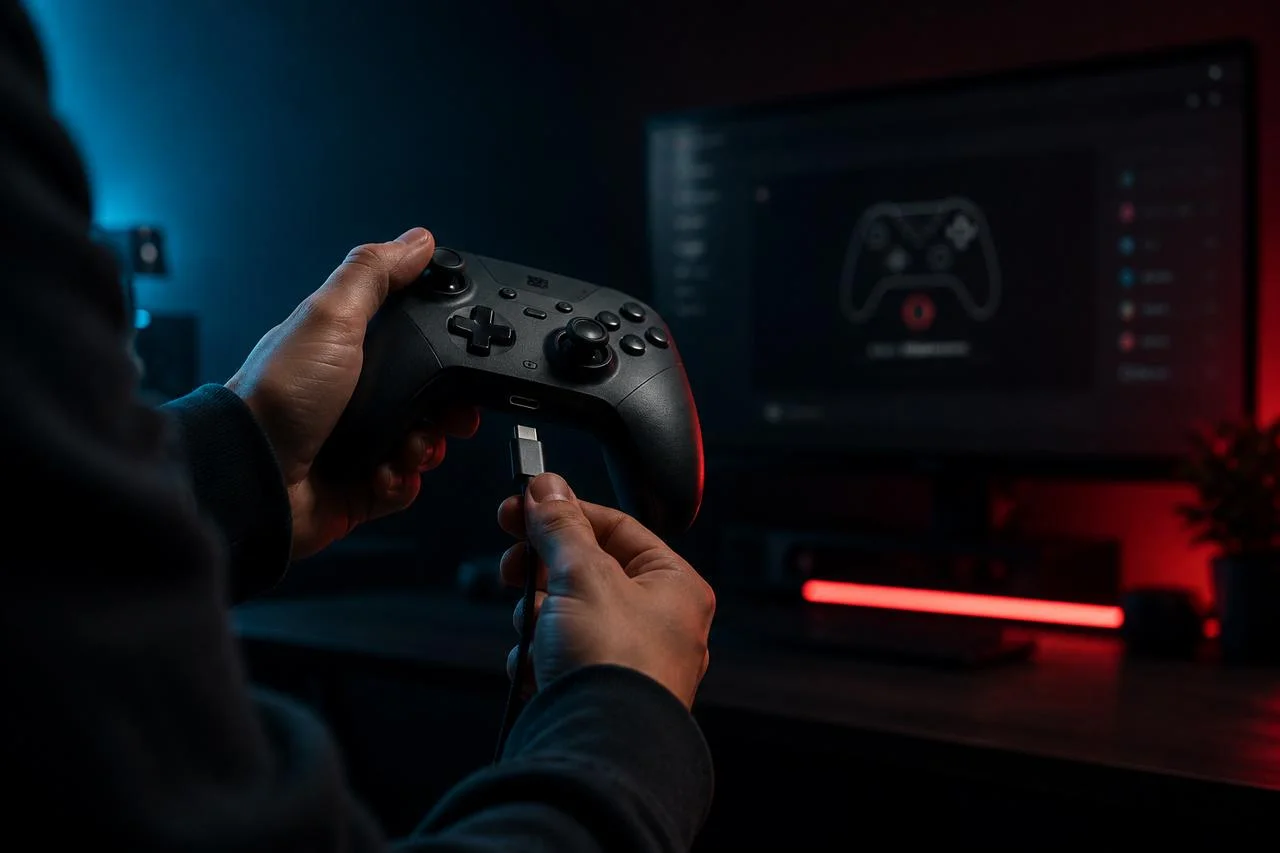
Fix 4: USB-C tether as a workaround. A direct USB-C cable from the Pro Controller to the PC bypasses the Bluetooth stack entirely. Windows recognises the controller through the generic HID profile and Steam picks it up immediately. This is the right answer when Bluetooth pairing fails repeatedly across multiple PCs and you do not want to live with the flakiness.
How does pairing differ across PC, Mac, and Linux?
Switch Pro Controller pairing differs across operating systems because each one ships its own driver layer for Nintendo's non-standard HID profile. Windows pairs it as a generic HID gamepad and relies on Steam Input to map the buttons, macOS supports it natively from Big Sur 11.3 onwards, and Linux uses the hid-nintendo module in mainline since kernel 5.16[3].
Older platforms usually need a one-off driver install before pairing works reliably.
Browser support is the most consistent layer, because every modern browser implements the W3C Gamepad API and reads the Pro Controller's normalised axes and buttons directly[1].
Windows 10 and 11. Plug-and-play over Bluetooth and USB-C, but only as a generic HID device. The most common gotcha is Windows mapping A to B and X to Y because Nintendo and Microsoft swap the right-cluster face buttons. Steam Input fixes this when "Nintendo button layout" is enabled in the controller settings.
macOS. Big Sur 11.3 and later pair the Pro Controller natively over Bluetooth. Pair through System Settings, then Bluetooth, exactly as you would pair AirPods. macOS exposes the controller to any GCController-compatible app, which covers most Mac App Store games.
Linux. hid-nintendo is in the mainline kernel for Ubuntu 22.04+, Fedora 36+, and Arch[3]. Older distributions need joycond installed through the package manager. Check dmesg for HID enumeration errors if the controller pairs but no input shows up in jstest.
Browser. Chrome, Edge, Firefox, Brave, and Vivaldi expose the Pro Controller through the Gamepad API with full input support. Safari supports inputs but with reduced haptic feedback. iOS Safari from version 16 onwards supports the Pro Controller paired over Bluetooth.
Which Switch controllers work on which platforms?
| Controller | Win USB | Win BT | macOS USB | macOS BT | Linux | Browser |
|---|---|---|---|---|---|---|
| Switch Pro Controller | ✓ | ✓ | ✓ | ✓ | ✓ | ✓ |
| Joy-Con (paired together) | wired | each separately | wired | each separately | ✓ joycond | each separately |
| Joy-Con + Charging Grip | ✓ | ✗ | ✓ | ✗ | ✓ | ✓ |
| 8BitDo SN30 Pro | ✓ | ✓ | ✓ | ✓ | ✓ | ✓ |
| 8BitDo Pro 2 | ✓ | ✓ | ✓ | ✓ | ✓ | ✓ |
| Hori Split Pad Pro (Switch-only) | ✓ via Switch | ✗ | ✗ | ✗ | ✗ | ✗ |
| NSO N64 / SNES / NES / Mega Drive | ✓ via cable | ✓ | ✓ via cable | ✓ | ✓ | ✓ |
Why does Steam see the controller but my game does not?
Steam sees your Pro Controller but your game does not because Steam Input is capturing the controller in Nintendo mode and translating it before the game polls the input layer it expects[1]. The browser-native Gamepad API and Steam Input run at different levels of the input stack.
Disabling Steam Input for the specific game resolves this in most cases.
Open Steam, right-click the game, choose Properties, then Controller, and disable Steam Input. Restart the game. If the game uses DirectInput rather than XInput, add it to Steam as a non-Steam game and use Steam Input as a wrapper, or use BetterJoy to translate the Pro Controller's native HID output into XInput.
JoyCheck deliberately polls the controller through the browser-native Gamepad API only. There is no driver layer between the controller and the diagnostic, which is exactly why it is a reliable check for hardware faults regardless of which platform-side layer is causing the pairing-but-no-input symptom.
When should I replace the controller instead of fixing it?
Replace the Pro Controller instead of fixing it when JoyCheck fails to see it on two PCs across both Bluetooth and USB-C, when the sync button does not produce the LED chase pattern after 5 seconds of hold, or when the USB-C port wobbles when a cable is inserted[4].
Those three signs together point to a failed Bluetooth chip or broken sync hardware.
Nintendo offers a 12-month warranty in the UK and EU under standard consumer protection law, longer than the regional warranty in some markets[4].
For stick-only faults, the stick drift diagnosis guide covers when stick-module replacement is the right call. For connection faults on the Pro Controller, the economics rarely work out: a new official Pro Controller costs roughly £60[4]. Third-party Hall-effect alternatives such as the GuliKit KingKong 3 Pro or the 8BitDo Ultimate 2C cost roughly £55 to £65 with a longer expected lifetime on the analog sticks.
If you have already replaced sticks on the same Pro Controller once before, a Hall-effect Switch-compatible pad is the long-term answer rather than a like-for-like swap.
How do I confirm the pairing fix actually worked?
Confirm the fix worked by running a full controller test in JoyCheck after every attempted fix and aiming for two clean passes in a row before declaring the controller paired. A single clean read after a power-cycle is not enough. Bluetooth pairings can settle for 30 seconds and then drop again, so the second pass catches the slip.
Open joycheck.io, press any button to wake the Pro Controller, and watch the live diagram populate.
Cycle through every input: both analog sticks at full deflection, both shoulder buttons, both triggers (digital on Pro Controller, no analog axis), every face button, the full D-pad, plus Home, Capture, Plus, and Minus. Each input should light up in the diagram. If one specific input fails to register while the others work, that is a localised hardware fault rather than a pairing problem, and replacement of that specific component (or the whole controller) is the next step.
For ongoing controllers you rely on for competitive play, run the full test once a month. Bluetooth pairing faults tend to creep in over weeks rather than fail suddenly. According to community field threads on r/SwitchPro[5], the most reliable early warning is intermittent button drop during long sessions rather than a clean disconnect.
Frequently Asked Questions
Can I tell whether my Switch Pro Controller is broken or just unpaired?
Yes. Run JoyCheck on at least two different PCs over USB-C. If neither machine sees the controller over a wired connection, the Pro Controller has a hardware fault. If at least one PC sees it on USB-C but Bluetooth fails everywhere, the Bluetooth chip inside the controller is the fault, not the pairing process itself.
Why won't my Pro Controller pair with my Steam Deck?
The most common reason is that SteamOS keeps a stale pairing entry from a previous session. Open Settings, choose Bluetooth, find the controller in the paired list, and tap "Forget". Hold the sync button on the top edge for 3 to 5 seconds until the LEDs chase, then run "Add Bluetooth Device" on SteamOS. After the fresh pair, the Steam Deck recognises the Pro Controller within five seconds. Steam Input is enabled by default and maps the buttons correctly for Steam games.
Will the Pro Controller work on iPhone or iPad?
Yes, on iOS 16 and later, the Pro Controller pairs over Bluetooth like any other accessory. Open Settings, choose Bluetooth, hold the sync button on the controller until the LEDs chase, and tap the controller's name in iOS when it appears.
My Pro Controller pairs but A and B feel swapped. Why?
Nintendo and the rest of the industry put the A and B buttons in opposite positions on the right cluster. Windows reads them based on physical position, not label. Enable "Nintendo button layout" in Steam Input, or swap them manually in the game's controller bindings if the wrapper does not expose the setting.
Do I need BetterJoy or vJoy for my PC?
Only if the game uses DirectInput rather than XInput and you do not want to add it to Steam. BetterJoy translates the Pro Controller's native HID output into XInput for any DirectInput-only game. Modern XInput-aware games pair directly through Steam Input on Windows 10 or 11.
Can I update Pro Controller firmware without a Switch console?
Not officially. Firmware updates run through the Nintendo Switch's system settings, which require a Switch console. PC and Mac users need to borrow a Switch for a single one-time update over USB-C.
The controller pairs but no buttons register in any app. What now?
That is HID handshake corruption. Unpair the controller from your PC's Bluetooth devices list, restart Windows, hold the sync button for 3 to 5 seconds, and re-pair from scratch. If BetterJoy, JoyToKey, or vJoy is installed, close those before retrying. They can leave the input stack in a stuck state even after the application window is closed.
Sources & references
- W3C Gamepad API specification. Defines how browsers expose connected gamepads, including the normalised axes and button map JoyCheck reads from the Pro Controller through the browser-native API.
- Nintendo Pro Controller support. Official Nintendo pairing documentation covering the sync-button hold requirement and platform support across Windows, macOS, iOS, and the Switch console firmware updater used to push firmware to the Pro Controller over USB-C.
- Linux kernel HID modules. Kernel HID documentation; hid-nintendo has been in mainline since 5.16.
- USB-IF USB-C specification overview. USB Implementers Forum reference for USB-C cable and connector behaviour, including the data-versus-power-only distinction that explains why some charging cables fail as Pro Controller tether cables.
- r/SwitchPro on Reddit. Community-aggregated field reports across PC and Steam Deck setups, used as a directional signal for the relative frequency of Bluetooth, Steam Input, and firmware-update failure modes seen in the wild.