Test Game Controller PC: 4 Tools Compared (2026 Guide)
Testing a game controller on PC means confirming your computer detects the gamepad and reads every button, trigger, and analog stick correctly.
Test a game controller on PC: 4 tools compared (Joy.cpl, Steam, JoyCheck, OEM). Which tool to use for which symptom, in 30 seconds.
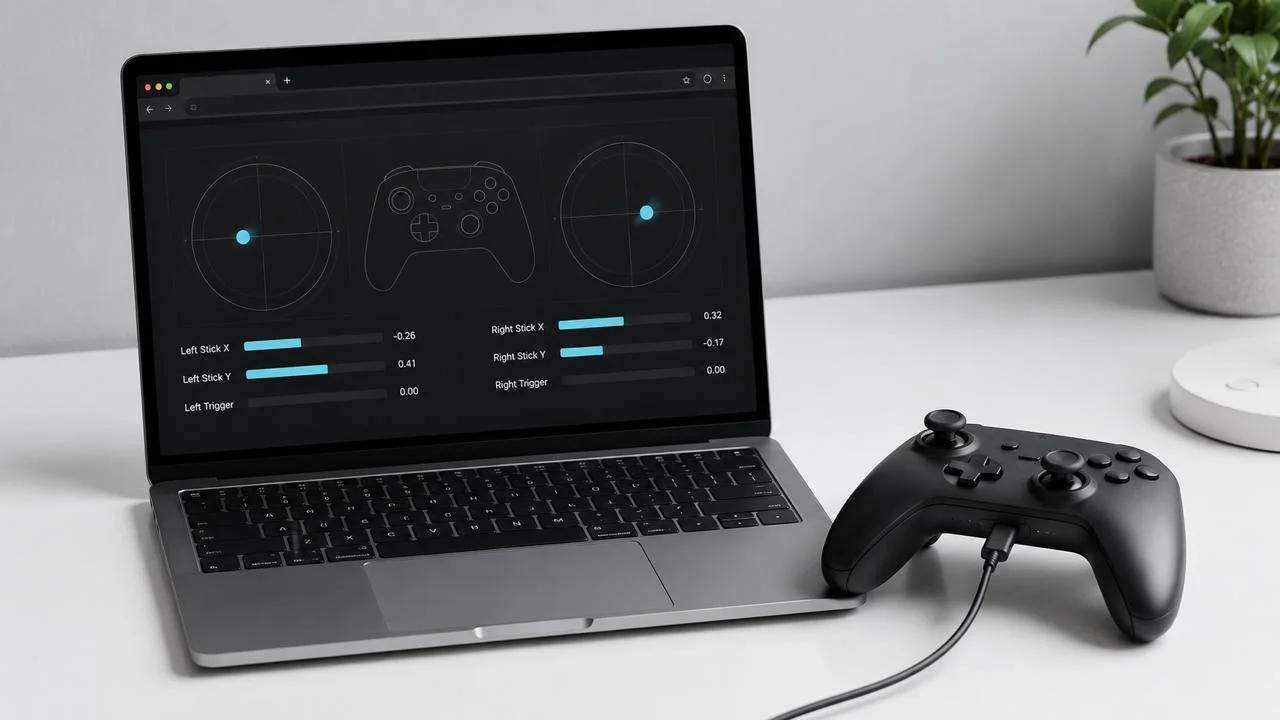
To test a game controller on PC, open a browser-based tester like JoyCheck, connect the pad over USB or Bluetooth, press any button, and watch the live numeric readout for stick drift, button response, and trigger range. That confirms your computer detects the gamepad and reads every input correctly, in about 30 seconds, with no install.
This guide compares the four real tools for the job, then routes you to the right one based on the exact symptom you are chasing.
How the four tools compare
- Joy.cpl is legacy DirectInput: it shows axes and buttons but misses triggers, rumble, and polling rate.
- Steam Big Picture has the best built-in calibration, but it routes everything through the Steam Input layer.
- JoyCheck reads the W3C Gamepad API in the browser to three decimal places, with no install and no upload.
- OEM tools (Xbox Accessories, DS4Windows) handle remapping and firmware, not raw diagnostic readouts.
- Match the tool to the symptom: drift goes in a browser tester, remapping goes in OEM software.
To test a game controller on PC in 2026 you have four real options: Microsoft’s Joy.cpl (Game Controllers control panel), Steam Big Picture, browser-based testers like JoyCheck, and OEM apps (Xbox Accessories, DS4Windows, GuliKit). Each surfaces different data. JoyCheck reads raw input through the W3C Gamepad API, which the specification defines as a cross-browser standard exposing connected gamepads to JavaScript with no driver install [1], and it works across Xbox, PlayStation, Switch, and 8BitDo pads.
Source: W3C Gamepad API specification
Start with the browser test
- Open the gamepad tester in any modern browser. Desktop is more reliable than mobile for PC controller testing.
- Connect the controller: USB-C for DualSense and Xbox Series X/S pads, Micro-USB for DualShock 4 and Xbox One, or paired Bluetooth for any of the above.
- Press any button. The Gamepad API only exposes the device after a user-initiated input. That is a privacy guard, not a bug.
- Watch the live readouts: four stick axes, every button, both triggers, and an optional vibration test button.
- Run the idle drift test. Place the pad on a flat surface, hands off, for five seconds, then read both stick X and Y. Outside plus or minus 0.03 means measurable drift past the noise floor.
- Cycle every button. Each press should drive its value to 1.0. A miss-press, or a press that registers below 1.0, points to a worn microswitch.
- Run the trigger sweep. Pull L2 and R2 slowly from rest to full press. The value should climb smoothly from 0.000 to 1.000. A trigger topping out at 0.93 has a worn potentiometer or Hall sensor.
What does “test game controller PC” really mean in 2026?
To test a game controller on PC means doing one of four different jobs, and mixing them up is the reason most guides waste your time. The four jobs are verification, drift hunting, mapping confirmation, and performance measurement, and each one calls for a different tool.
The first job is verification. Does the pad send the inputs I press, on every button and axis? A new pad, or a suspect used one, both call for this.
The second is drift hunting: does the stick sit at zero when I let go? That is the most common failure mode on a DualShock 4, base DualSense, Joy-Con, or base Xbox Wireless Controller. The full repair ladder lives in Stick Drift Explained.
The third is mapping confirmation. Are the buttons reporting the indices the game expects? Driver wrappers like XInput, DInput, and Steam Input each remap differently.
The fourth is performance: polling rate, input latency, and deadzone behaviour, which matter to competitive players and almost nobody else.
A good test tool has to answer at least one of those cleanly. None of the four below answers all four perfectly.
What are the four real tools to test a game controller on PC?
The four real tools to test a game controller on PC are Microsoft’s Joy.cpl, Steam Big Picture, the browser-based JoyCheck tester, and the per-vendor OEM apps such as Xbox Accessories and DS4Windows. Each surfaces different data, so the choice depends on the symptom. Here is the comparison, with the version of each tool I actually used in May 2026.
| Tool | Install | Drift readout | Trigger range | Rumble test | Best for |
|---|---|---|---|---|---|
| Joy.cpl (Windows) | None, built in | Visual only | Partial | No | Confirming DirectInput sees the pad |
| Steam Big Picture | Steam client | Numeric + visual | Yes | Yes | Steam Input deadzone tuning |
| JoyCheck (browser) | None | Numeric, 3 decimals | Yes, 0.0 to 1.0 | Optional | Cross-controller raw diagnostic |
| OEM apps | Yes, per vendor | Yes | Yes | Yes | Firmware, remap, trigger curves |
The next four sections cover each tool in enough depth to know which to reach for.
Joy.cpl: Windows Game Controllers control panel
Joy.cpl is the legacy DirectInput test page Microsoft has shipped since Windows 95. Open Run with Win+R, type joy.cpl, press Enter, then click Properties. You get a window with stick axes drawn as crosshairs and buttons that light up red when pressed.
It works on every Windows version through Windows 11 23H2. It needs no install. It reads the raw DirectInput device.
The limits are real: no numeric values, no decimal-place readout, triggers usually combined into a single axis, no rumble test, and no polling rate.
If the panel itself hangs or takes minutes to open, treat that as a Windows fault rather than a controller one. A user who reported exactly that in a 2018 Microsoft Q&A thread was answered by a community MVP with system-file repair and reinstall steps, not with anything controller-specific [6].
Use Joy.cpl as a sanity check: did Windows see the pad. For anything past that, switch to one of the other three tools.
Steam Big Picture: calibration plus Steam Input layer
Steam’s controller settings include a calibration page inside Big Picture mode. Open Steam, switch to Big Picture, then go Settings, Controller, and pick your pad. The page shows stick centring, trigger range, and a rumble test, all numeric to two decimal places.
The strong point is the deadzone preview, where the boundary tracks the stick live and no other tool shows the true effect of dragging the slider for a game running Steam Input.
The weak point is the Steam Input layer itself. When Steam is running, it intercepts your controller and remaps inputs before the game sees them [5], so a browser-based tester reads the remapped XInput-equivalent, not the raw DualSense report. Disable Steam Input per controller, or close Steam, before running a clean diagnostic.
Steam is the right tool when you are tuning a Steam game. For raw stick values, Steam is the wrong layer.
JoyCheck: browser-native W3C Gamepad API test
JoyCheck reads the W3C Gamepad API, the cross-browser standard for exposing connected game controllers to JavaScript. The specification first reached Candidate Recommendation in 2017, remains under active W3C development, and the API shipped in Chrome 35 in 2014. Every major browser supports it.
The page does three things Joy.cpl and Steam do not: raw stick value to three decimal places at the browser’s render rate, independent trigger floats from 0.0 to 1.0 so you can see if R2 tops out at 0.97 (worn) instead of 1.0, and broad controller coverage across DualSense, DualShock 4, Xbox Wireless Controller, Switch Pro, Joy-Con, 8BitDo, and most generic HID pads.
JoyCheck does not need an install or a driver and runs entirely on the client. No analytics on your input data, no upload of diagnostic results, no account. Close the tab and the session is gone.
The limit: the browser is rate-limited to render frequency (60 Hz on a standard monitor), even though the controller polls at 125 Hz over Bluetooth and around 250 Hz over USB. For drift detection and button verification, this is more than enough.
OEM tools: Xbox Accessories, DS4Windows, GuliKit Console Tool
Each manufacturer ships its own app for firmware and remapping.
Xbox Accessories covers Xbox Wireless Controllers and the Elite Series 2. Features include button remap, paddle assignment, stick sensitivity, trigger travel, a vibration test, and firmware updates. Diagnostic readouts are shallow.
DS4Windows is a community project that exposes DualShock 4 and DualSense to Windows as a virtual Xbox 360 pad. It is useful for older XInput-only games. It includes a basic test page with stick values, plus per-profile deadzone and curve settings.
8BitDo Ultimate Software covers the 8BitDo Ultimate series with curve, deadzone, rumble, and trigger range, and the 8BitDo firmware update guide covers the safe version-check process. GuliKit Console Tool exposes the Hall-effect stick calibration that GuliKit firmware accepts on its own pads.
OEM tools are the right answer for remapping, firmware, and trigger curve tuning. They are the wrong answer for “is my controller broken”, because their diagnostic readouts are coarser than a browser tester showing raw HID values.
How does the W3C Gamepad API bind your controller to the browser?
The W3C Gamepad API binds your controller to the browser by mapping each connected pad to a Gamepad object, exposed through navigator.getGamepads(), once the user presses a button [2]. Every browser-based tester depends on this one API, and understanding it saves confusion when a pad shows up oddly.
The Gamepad object has two arrays you care about.
axes holds floats from -1.0 to 1.0. In the standard layout, index 0 is left stick X, index 1 is left stick Y, index 2 is right stick X, and index 3 is right stick Y. Older HID pads and some HOTAS rigs use different indices.
buttons holds objects with a pressed boolean and a value float from 0.0 to 1.0. Digital buttons report 0 or 1. Analog triggers report depth of press.
A second browser standard, WebHID, reaches lower down and exposes raw HID reports for the capabilities the Gamepad API leaves out, such as LED indicators and audio, but a page can only touch a device after the user picks it from a permission chooser [4]. For ordinary stick, button, and trigger diagnostics, the Gamepad API is the right layer.
One security gate: the browser will not expose a controller until the user presses a button on it. This is a defence against drive-by fingerprinting, and a single press is enough.
The browser samples at render rate. The controller reports faster (125 Hz Bluetooth, 250 Hz USB on DualSense, up to 1000 Hz on a Razer Wolverine V3), but the visible readout is bounded by your monitor. For diagnostics this is fine.
Which tool for which symptom?
Match the tool to the symptom: drift and dead buttons go in JoyCheck, deadzone and mapping go in Steam, firmware and remaps go in an OEM app, and a “does Windows see it at all” check goes in Joy.cpl. This short routing table covers the most common reasons people search “test game controller PC”.
| Symptom | Reach for | Why |
|---|---|---|
| Stick drifts when I let go | JoyCheck | Three-decimal numeric readout shows drift before deadzone hides it |
| Button does not register | JoyCheck or Joy.cpl | Both light up on press; JoyCheck shows analog value if relevant |
| Trigger feels short | JoyCheck or Xbox Accessories | Both show 0.0 to 1.0 trigger range |
| Rumble does not fire | Steam Big Picture or OEM app | Both can trigger motors deliberately |
| Buttons mapped wrong in a game | Steam Input or OEM app | Both let you remap before the game sees the input |
| Driver not loading | Joy.cpl + Device Manager | Confirms DirectInput sees the pad and the driver state |
The pattern: JoyCheck answers “is my hardware producing the right values”, Steam answers “is my deadzone and mapping right for this game”, OEM tools answer “do I want to change the firmware or remap”, and Joy.cpl answers “does Windows see the pad at all”.
“Most people testing a PC controller want one of two things: confirm the hardware is healthy, or rule it out so they can blame the game. A browser-based tester does both in 30 seconds. The other tools are for tuning, not triage. In my hardware-diagnostic work, the wrong-tool problem wastes more time than any actual fault.”
Taimoor Bamazai, founder, Elites Algorithm
What do the numbers mean: drift threshold, deadzone, and polling rate?
Three numbers determine whether your pad passes a PC controller test: the stick drift threshold, the deadzone, and the polling rate. The drift threshold tells you if a stick is worn, the deadzone explains why a game hides that wear, and the polling rate sets how fast the pad reports. Get those three straight and the readout stops being mysterious.
Stick drift threshold. A new potentiometer stick centres at less than plus or minus 0.005 in the W3C Gamepad API’s normalised range. Wear pushes that number up. Plus or minus 0.03 is the noise floor most pads sit at when new. Plus or minus 0.05 is when most games stop hiding drift with default deadzone. Plus or minus 0.10 is when drift produces visible character movement.
If your idle readout sits at 0.04, the pad is on the way out but most games still play. At 0.08, a stick module replacement starts paying back, and iFixit publishes teardown and stick-module guides for DualShock 4, DualSense, Xbox, and Joy-Con pads [8]. At 0.15 you are unplayable in any thumbstick-driven game.
Deadzone. A software setting in the game (or in Steam Input), not in the controller. It defines a margin around centre where input is ignored. Small deadzones feel precise and reveal drift. Large deadzones feel mushy but hide drift. A browser tester shows the raw value before deadzone.
Polling rate. Reports per second from controller to host. DualSense polls at around 250 Hz over USB and 125 Hz over Bluetooth per the open-source DualSense library. Xbox Wireless Controllers poll at 125 Hz Bluetooth, 250 Hz USB. Razer’s Wolverine V3 Pro pushes 1000 Hz with the dongle.
For drift checks, render rate is plenty. Drift is constant by definition, so you do not need 1000 Hz sampling to see a stick stuck at 0.06.
What about DirectInput vs XInput in 2026?
DirectInput and XInput are two different Windows controller APIs, and the legacy split between them still trips people up in 2026 [3]. DirectInput is the old one from 1995, XInput is the modern Xbox 360 era one from 2005, and Sony pads natively speak neither, reporting through HID instead. Knowing which layer a game targets explains most mapping confusion.
DirectInput was Microsoft’s controller API from 1995 to 2005, supporting up to eight axes and 128 buttons. Old PC games and most flight sticks use it.
XInput replaced it in 2005 for the Xbox 360, with a fixed layout: two sticks, two triggers, four face buttons, two shoulders, d-pad, start, back, and two stick clicks. Every Xbox controller since 2005 reports through XInput, and most modern PC games target XInput.
Sony pads do not natively speak XInput; DualShock 4 and DualSense report through HID instead, the USB Implementers Forum device class that keyboards, mice, and game controllers all enumerate under [7]. To run a Sony pad in an XInput-only game, you wrap it with DS4Windows, Steam Input, or Windows 11’s built-in DualShock support.
JoyCheck and other W3C Gamepad API testers read whatever the OS exposes through its standard HID interface, so you see actual values. If a game misbehaves, the wrapper is the suspect, not the hardware.
What about specific controllers?
Specific controllers map to the W3C Gamepad API in slightly different ways, but JoyCheck reads all of the major pads: DualSense, DualShock 4, Xbox Wireless Controller, Xbox 360, Switch Pro, and Joy-Con. Only the older DualShock 3 needs a driver before the browser can see it. Here is a quick map across the most-tested ones.
DualSense and DualSense Edge. JoyCheck shows all axes, L2 and R2 analog triggers, and the touchpad as a stick. The full centring and trigger walkthrough lives in the DualSense calibration guide.
DualShock 4. Same Gamepad API mapping as DualSense. Bluetooth pairing is direct on Windows 10 22H2 and later, and the DualShock tool and vibration reference covers the rumble-test specifics.
DualShock 3 (PS3 pad). Modern Windows does not expose it natively, so you need DsHidMini or ScpToolkit before the browser can read it.
Xbox Wireless Controller and Xbox 360. JoyCheck reads them through standard XInput mapping. The legacy pad has its own walkthrough in the Xbox 360 controller diagnostic, and detection failures are covered in Xbox controller not detected.
Switch Pro and Joy-Con. Joy-Con can be tested individually or as a single grip if a virtual grip driver is running. Pairing issues are covered in Switch Pro pairing.
8BitDo, GuliKit, Razer, PowerA. JoyCheck reads them as whichever controller mode the pad is currently in.
When can you not test a game controller in the browser?
You cannot test a game controller in the browser when the OS never enumerates the device, because no browser can read a pad the operating system does not see. A small set of failures sit below the browser layer, and it is worth being honest about them.
- The pad does not show up at all. If the OS does not enumerate the device, no browser can see it. Check Device Manager on Windows first.
- Bluetooth pairing failures. This is an OS-level issue, not a controller issue. Re-pair through your OS settings.
- Driver mode mismatch. A DualShock 3 without DsHidMini will not appear on modern Windows.
- Steam Input intercepting your controller. Close Steam, or disable Steam Input per controller, for a clean diagnostic.
- Wireless dongle range or low battery. Symptoms include intermittent disconnects and ghost inputs. See Bluetooth controller disconnecting.
Documentation behind these tool comparisons
- W3C Gamepad API specification. The W3C standard defining normalized stick value ranges and the polling interface every modern browser implements for connected gamepads.
- Mozilla Developer Network Gamepad API reference. Developer documentation for navigator.getGamepads(), the axes and buttons arrays, and the user-gesture exposure gate.
- Microsoft XInput and DirectInput overview. Microsoft’s reference distinguishing the legacy DirectInput API from the modern XInput layout.
- WICG WebHID API specification. The Web Incubator standard for lower-level HID access used by some browser controller tools.
- Valve Steam Input documentation. Valve’s reference for the Steam Input layer, deadzone handling, and per-controller configuration.
- Microsoft Q&A thread on setting up USB game controllers. A community troubleshooting thread covering the Joy.cpl Game Controllers control panel, hosted on Microsoft Q&A.
- USB Implementers Forum HID information. The USB-IF reference for the Human Interface Device class that controllers enumerate under.
- iFixit game controller repair guides. Public teardown and stick-module replacement guides for DualShock 4, DualSense, Xbox, and Joy-Con pads.
What is the best way to test a game controller on PC?
Open JoyCheck in a browser, connect the controller via USB or Bluetooth, press any button, and watch the live numeric readout for stick drift, button response, and trigger range. Thirty seconds end to end. For Steam-specific deadzone tuning, use Steam Big Picture instead.
How do I test a game controller PC in my browser without installing anything?
JoyCheck and other W3C Gamepad API testers run entirely in the browser with no driver and no executable. The page reads navigator.getGamepads() and updates the readouts inside a requestAnimationFrame loop. Close the tab and the session is gone.
Why does my controller not show up in Joy.cpl?
Joy.cpl reads DirectInput. Some controllers, notably the Xbox Wireless Controller routed through XInput or a DualShock 3 with no driver, are not exposed to DirectInput on modern Windows. Use a W3C Gamepad API tester or Device Manager to confirm the OS sees the device.
Is controller drift a hardware or software issue?
Almost always hardware. The wiper inside a potentiometer stick wears its resistive track over time, raising the rest value above zero, which a browser diagnostic shows directly before deadzone is applied. If the rest reading sits above ±0.03, the wear is mechanical.
How do I fix a controller without replacing it?
For drift, iFixit publishes stick-module replacement guides for DualShock 4, DualSense, Xbox Wireless Controller, and Joy-Con. Parts run €15 to €25. For button misses, cleaning the rubber contacts with isopropyl alcohol restores function in some cases.
Does PC controller testing work the same for Xbox, PlayStation, and Nintendo?
The W3C Gamepad API normalises across all three. Stick axes report -1.0 to 1.0, buttons report 0.0 to 1.0. Button index differs by manufacturer, but JoyCheck shows the index and the press value side by side so you see what your pad sends.
Does JoyCheck send any data to a server?
No. JoyCheck runs entirely in your browser using the Gamepad API, with no analytics on controller input and no upload of diagnostic results. Close the browser tab and the session is gone, because the only network traffic is the initial page load.
Compare it against your own controller
Three decimal places, no install, nothing uploaded.